If you want the best tablet for Adobe Illustrator in 2026, the Apple iPad Pro 13-Inch (M4) is the clear top pick — its Ultra Retina XDR display and M4 chip handle Illustrator's vector rendering with zero hesitation. Whether you're a freelance designer, a professional illustrator, or a student building your portfolio, the right tablet transforms how you work in ways a mouse-and-keyboard setup simply can't match.
Adobe Illustrator is one of the most demanding creative applications you can run on a mobile device. It requires fast processors, accurate color reproduction, low-latency stylus input, and enough screen real estate to work comfortably on complex vector artwork. The good news is that the 2025–2026 generation of tablets and pen displays has raised the bar significantly across all of these categories. You're no longer forced to compromise between portability and performance.

In this guide, we've tested and evaluated seven of the top options — from Apple's premium iPad lineup and Microsoft's versatile Surface Pro to Wacom and Huion's professional pen displays. We cover everything from standalone tablets you can take anywhere to desktop-class pen displays that plug into your existing workstation. If you're still weighing whether a tablet or a full laptop suits your creative setup, check out our roundup of the 15 Best Laptops for Art Students in 2026 for context. Now let's get into the picks that actually matter. You can also explore more options in our buying guide for creative hardware.
Contents



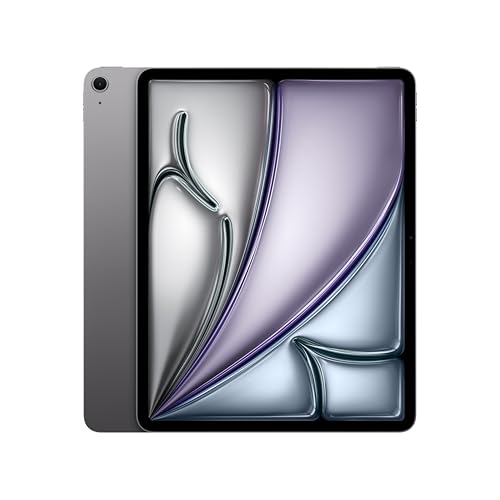


The Apple iPad Pro 13-Inch with the M4 chip is, without question, the best standalone tablet you can buy for Adobe Illustrator in 2026. The Ultra Retina XDR display covers the P3 wide color gamut with exceptional accuracy, which means the colors you see on screen match what gets exported — critical when you're designing brand assets or print materials. ProMotion adaptive refresh up to 120Hz keeps the Apple Pencil Pro feeling glued to the canvas, with virtually imperceptible latency even on large, complex vector files.
The M4 chip is the real reason this iPad dominates. Illustrator's performance scales with raw CPU and GPU throughput, and the M4 delivers more of both than any previous iPad silicon. You can work on documents with hundreds of layers and complex effects without the sluggishness that plagued older iPad generations. The 256GB base configuration is reasonable for most users, though if you work with large linked asset libraries, stepping up to 512GB is worth the investment. LiDAR Scanner support also opens doors for augmented reality design previews if your workflow extends into that territory.
Build quality is as premium as it gets. The impossibly thin aluminum chassis makes it easy to carry between studio and client meetings, and the Face ID unlock is genuinely fast. With Apple Intelligence built in, you get AI-assisted writing and task tools that, while not Illustrator-specific, round out the productivity picture. Pair this with the Apple Pencil Pro (sold separately) and you have a complete professional illustration setup that fits in a backpack.
Pros:
Cons:
The iPad Air 13-inch with M4 hits a sweet spot that most designers don't realize exists until they try it. You get the same M4 chip as the Pro — yes, the exact same chip — in a slightly less refined package, at a meaningfully lower price. For Adobe Illustrator workflows, the M4 chip is what matters most, and the Air delivers it fully. The Liquid Retina display is excellent, offering accurate color reproduction and a large 13-inch canvas that makes working on complex illustrations comfortable.
Where the Air differs from the Pro is in the display technology. You get a standard Liquid Retina panel instead of the Ultra Retina XDR, which means no mini-LED backlighting and lower peak brightness. For most indoor studio environments this is completely fine. The bigger omission is ProMotion — the Air tops out at 60Hz. If you're coming from a Pro or a Cintiq, you may notice the difference, but for most users transitioning from a mouse-based workflow, 60Hz feels entirely natural. Wi-Fi 7 with Apple N1 is actually a step up from the Pro in wireless connectivity, keeping your Creative Cloud assets synced fast.
Storage tops out at 1TB, and the all-day battery life holds up through long working sessions. Touch ID on the power button replaces Face ID, which works fine but feels less seamless. The iPad Air 13-inch is the right choice if you want a big-screen Apple Illustrator experience without paying for display features that go beyond what your workflow actually demands. Apple Intelligence support is included here too, giving you access to the same AI productivity tools as the Pro.
Pros:
Cons:
If your workflow demands the full desktop version of Adobe Illustrator — not the iPad version — then the Microsoft Surface Pro 2-in-1 (2025) is your portable option. It runs Windows 11 natively, which means you get every feature, every plugin, and every panel that Illustrator on desktop offers. Nothing is cut down or adapted. The Snapdragon X Plus processor with an NPU delivering 45 trillion operations per second handles Copilot+ AI features while keeping the overall system responsive for creative work.
The 12-inch touchscreen display is sharp and touch-accurate, and the built-in kickstand lets you prop it up at a comfortable drawing angle without an additional stand. The 16GB RAM and 512GB storage configuration reviewed here is genuinely capable — Illustrator opens quickly, files save fast, and multitasking between Illustrator, a browser, and Photoshop doesn't grind the system to a halt. The Snapdragon X Plus is ARM-based, which means a small number of older Illustrator plugins may have compatibility issues, but Adobe's own apps run natively on ARM in 2026 without performance penalties.
The Surface Pro Keyboard is sold separately, which adds cost, but it transforms the device into a proper laptop for non-drawing tasks. Without it, you're working purely as a tablet, which is excellent for illustration sessions but limits your typing comfort. For designers who need Windows compatibility — whether for enterprise software, specific font management tools, or legacy file formats — the Surface Pro 2025 is the most capable and portable choice available.
Pros:
Cons:
The Wacom Cintiq 16 is the entry point into professional pen display territory, and it earns its place on this list by delivering Wacom's best pen technology at a significantly lower cost than the Cintiq Pro line. The Pro Pen 3 included here offers 8,192 levels of pressure sensitivity with tilt support, giving you the same pen performance that professional illustrators have relied on for years. The pen is battery-free, lightweight, and responds to the lightest touch — critical for fine linework and detailed vector tracing in Illustrator.
The 2.5K WQXGA display (2560 x 1600) on a 16-inch IPS panel is genuinely sharp for this price tier. The 100% sRGB and 99% DCI-P3 color coverage means your colors are accurate enough for professional design output, even if it stops short of the Adobe RGB gamut that the Cintiq Pro 27 offers. The fully laminated display eliminates the parallax gap between pen tip and cursor, which is a must-have for precise illustration work — non-laminated displays at this price range make fine detail work frustrating.
This is a secondary display that connects to your Mac or PC via USB-C. Your computer does all the processing, which means the Cintiq 16's performance in Illustrator is limited only by the specs of your workstation. If you're running a capable desktop setup, this display delivers a drawing experience that far exceeds what any standalone tablet can offer at anywhere near this price. The three shortcut keys on the Pro Pen 3 and the pen holder that mounts to either side are practical quality-of-life additions that experienced illustrators will appreciate.
Pros:
Cons:
The Wacom Cintiq Pro 27 is the benchmark that all other pen displays are measured against. If you're a professional illustrator, motion graphics artist, or game concept designer who spends 8+ hours a day in Adobe Illustrator, this is your display. The 27-inch 4K UHD panel with 99% Adobe RGB and 98% DCI-P3 coverage sets the color accuracy standard for print-bound design work. 10-bit color depth and 120Hz refresh rate — double what any previous Cintiq Pro offered — make every stroke feel immediate and every gradient look precisely right.
The Pro Pen 3 here is identical to the one in the Cintiq 16 in pressure sensitivity (8,192 levels), but gains three side switches and the ability to customize grip, weight, and button layout. This level of personalization matters over long sessions — small ergonomic adjustments accumulate into real comfort differences. The 8 built-in customizable ExpressKeys let you map your most-used Illustrator shortcuts directly to hardware buttons, eliminating the need to reach across to your keyboard mid-flow. For an even more capable workstation setup, pair this display with a strong GPU — we cover the options in our guide to the Best Graphics Cards for Photo Editing in 2026, many of which apply equally to Illustrator work.
At 27 inches, this is a desktop-only tool. You'll need a proper desk setup with a solid arm or stand — if you're building out a full creative workstation, our roundup of the 10 Best Triple Monitor Stands in 2026 includes options that work well with large pen displays. The Cintiq Pro 27 requires a high-powered Mac or PC to drive it at full resolution. It connects via HDMI 2.0 or DisplayPort and also includes USB-C with power delivery. This is not a budget purchase, but for professionals who need Adobe Illustrator's full capabilities on the largest, most color-accurate canvas possible, it's the definitive choice in 2026.
Pros:
Cons:
HUION has been closing the gap on Wacom for years, and the Kamvas 13 Gen 3 is the most compelling evidence of that progress. At 13.3 inches, this is the most portable pen display on this list, and the new Canvas Glass 2.0 with anti-sparkle coating is a genuine improvement over the previous generation. Reduced glare makes it usable in brighter environments, and the full lamination eliminates the parallax gap that plagues cheaper pen displays. The display connects cleanly to laptops, desktops, and even Android devices, making it one of the most versatile options here.
PenTech 4.0 with 16,384 levels of pressure sensitivity — double the Wacom Cintiq 16's 8,192 — sounds impressive on paper, and in practice the pen does feel exceptionally responsive to light pressure variations. Whether that extra resolution translates to a visible difference in real Illustrator work is debatable, but the 2g Initial Activation Force means the pen registers even the gentlest touch, which is valuable for sketch-style vector work and thin line illustration. The three customizable pen side buttons add workflow shortcuts without requiring a separate keyboard reach.
The dual dial hardware control is a thoughtful feature for Illustrator — you can map one dial to brush size and another to zoom level, keeping your hands on the canvas longer. The 99% sRGB color coverage keeps colors accurate for digital-output illustration work, though it doesn't cover Adobe RGB for print professionals. At this size and price, the Kamvas 13 Gen 3 is an outstanding compact pen display for illustrators who work from laptops or need a secondary travel display that doesn't eat into their bag space.
Pros:
Cons:
The screenless drawing tablet is an underappreciated option for Illustrator work, and the Wacom Intuos Pro Medium (2025 Edition) is the best of its kind. Instead of drawing on a display, you draw on a pressure-sensitive surface while watching your monitor — a workflow that takes adjustment, but one that many experienced illustrators swear by for its ergonomic advantages and the ability to use your best external monitor for display. The Pro Pen 3 with 8,192 pressure levels and lag-free tracking is exactly what you'd find in the Cintiq 16, just without the screen underneath it.
The 2025 update brings a modern 16:9 active area format (11.4 x 8.1 inches / 291 x 206mm) that maps naturally to your monitor without distortion. The 10 customizable ExpressKeys and two mechanical dials at the top of the tablet give you fast access to Illustrator shortcuts without taking your eyes off your work. Bluetooth connectivity adds flexibility — you can work wirelessly from across your desk without cable management headaches, though USB is always available if you prefer a wired connection.
The Intuos Pro Medium is particularly well-suited to illustrators who already have an excellent monitor and don't want to replace it with a pen display, or those who work in tight desk spaces where a large Cintiq would be impractical. The medium size hits the right balance — large enough for expressive strokes, small enough to keep keyboard access comfortable. The pen options for grip style (slim, straight, or flared) are a genuine differentiator for long illustration sessions where hand fatigue matters. If you're building out a full studio setup, this pairs beautifully with a quality desk — take a look at our picks for the Best Desks for Video Editing in 2026 for workspace inspiration that applies equally to illustration studios.
Pros:
Cons:
For Illustrator work, color accuracy is non-negotiable. If you're designing for digital output — social media, web, UI — 100% sRGB coverage is the minimum standard you should accept. If your work goes to print, you need a display that covers 99% or more of the Adobe RGB color space, which is a wider gamut than sRGB. Only the Wacom Cintiq Pro 27 on this list fully satisfies print-focused designers on that metric. Resolution matters too: anything below 1080p on a 13-inch or larger screen will show visible jagged edges on fine vector linework. Aim for at least 2K resolution, and look for fully laminated displays that eliminate the gap between the glass surface and the pixel layer — parallax on non-laminated displays makes precise anchor-point placement genuinely difficult.
Pen pressure sensitivity — measured in levels — determines how naturally your stroke weight varies with hand pressure. Both 8,192 and 16,384 levels deliver excellent results in Illustrator; the practical difference between them is minimal for most workflows. What matters more is initial activation force (IAF) — how lightly you can touch the pen before it registers. A low IAF (2g) makes sketching and light linework feel natural, while higher IAF can produce skipped lines at the beginning of strokes. Latency — the delay between pen movement and cursor response — should be under 10ms on any current-generation pen display. Both Wacom and HUION devices reviewed here clear this threshold comfortably.
This is the most important structural decision in your purchase. Standalone tablets like the iPad Pro and Surface Pro contain their own processor, which means you can take them anywhere without carrying a laptop. Connected pen displays like the Cintiq and Kamvas require a Mac or PC to handle all the processing — the display is essentially a smart monitor that your computer drives. The trade-off is simple: standalone tablets offer portability, but run the iPad or Windows version of Illustrator (which, in 2026, is highly capable but still has feature gaps versus desktop). Connected displays give you full desktop Illustrator with no feature limitations, but require a workstation. If you already have a powerful computer and work at a fixed desk, a pen display will almost always give you a better illustration experience for the money.
Bigger isn't always better in illustration tablets. A 27-inch Cintiq Pro requires you to move your arm dramatically for strokes that span the canvas, which some artists love and others find fatiguing. The 13-inch Kamvas and Intuos Pro Medium force more wrist and finger movement for the same strokes. Most professional illustrators find the 16-inch range — the Cintiq 16 — to be the ergonomic sweet spot for long sessions. For portable standalone tablets, 13 inches is workable but 11 inches can feel cramped for detailed illustration. If you primarily work on typography, icons, or small-format logos, a 13-inch display is sufficient. For full-bleed illustration work with complex scenes, go 16 inches or larger.
Yes. The M4 chip in the iPad Pro handles even the most demanding Illustrator files without slowdown, and the Ultra Retina XDR display provides P3 wide color accuracy that's more than sufficient for digital illustration and most print work. The main limitation is iPadOS — it offers a very capable version of Illustrator but still lacks a handful of advanced desktop features like certain effects panel controls and some scripting capabilities. For the majority of professional illustration workflows, you will not notice the difference.
For Adobe Illustrator on iPad, you need either the Apple Pencil Pro or Apple Pencil (USB-C) — third-party styli do not support the pressure sensitivity and tilt data that Illustrator requires for professional linework. The Apple Pencil Pro adds features like squeeze gesture and barrel roll detection on compatible apps. For Illustrator specifically, the Apple Pencil (USB-C) is a more affordable option that covers all the core pressure and tilt functionality you need.
The Wacom Cintiq 16 and Cintiq Pro 27 work with MacBook Air, but performance depends on what you ask Illustrator to do. A current M2 or M3 MacBook Air drives both displays at full resolution without issue for typical illustration workflows. If you work with very large artboard files (100+ layers, complex effects, embedded high-resolution images), a MacBook Pro or desktop Mac will give you a noticeably smoother experience. The Cintiq itself adds no processing load — your computer handles everything.
For Illustrator work, the HUION Kamvas 13 Gen 3 is competitive with the Wacom Cintiq 16 at a lower price. The 16,384 pressure levels and Canvas Glass 2.0 deliver a pen experience that most illustrators find equivalent in daily use. Wacom maintains an edge in driver stability and long-term software support, which matters if you rely on this display professionally for years. HUION's drivers have improved substantially in 2025–2026. For students and intermediate professionals, the Kamvas 13 Gen 3 is an excellent choice. For seasoned professionals who can't afford driver issues during deadline work, the Wacom premium is justified.
Yes. The Surface Pro 2025 runs Windows 11 and the full desktop version of Adobe Illustrator — the same application you'd run on a desktop workstation. All features, all plugins, all panels are available. The Snapdragon X Plus processor runs Illustrator natively on ARM, so there's no performance penalty from emulation with Adobe's current 2025–2026 app versions. This is the key advantage the Surface Pro has over iPad — if your workflow depends on specific desktop-only Illustrator capabilities or third-party plugins, the Surface Pro is the only portable option on this list that supports them.
A pen display (like the Wacom Cintiq or HUION Kamvas) shows the Illustrator canvas directly on the surface you draw on — pen tip and cursor are in the same place. A screenless tablet (like the Wacom Intuos Pro) is a pressure-sensitive surface you draw on while watching a separate monitor. Pen displays have a shorter learning curve because the visual feedback is immediate. Screenless tablets require you to develop hand-eye coordination between tablet and monitor, but many professional illustrators prefer them because they allow ergonomic positioning of a large, high-quality monitor at eye level while drawing at a more natural wrist angle. Both approaches work equally well in Illustrator once the muscle memory develops.


About Editorial Team
The DigiLabsPro editorial team covers cameras, lenses, photography gear, and creative technology with a focus on helping photographers make informed buying decisions. Our reviews and guides draw on hands-on testing and research across a wide range of equipment, from entry-level beginner kits to professional-grade systems.
You can get FREE Gifts. Or latest Free phones here.
Disable Ad block to reveal all the info. Once done, hit a button below
