You're halfway through culling five hundred wedding shots in Lightroom when your laptop fan ramps up to maximum speed, the keyboard turns warm under your palms, and your export progress bar slows to a crawl that makes you want to throw the machine out the window. The processor is throttling itself to avoid permanent damage, sacrificing performance to stay alive, and you're burning time on a deadline that doesn't care about your thermal management problems. That's the exact moment photographers and video editors start seriously asking are laptop cooling pads worth it — and the honest answer depends on your workflow, your machine, and what you understand about what a cooling pad actually does. For more photography hardware and workflow guides tailored to creators, browse our photography articles.
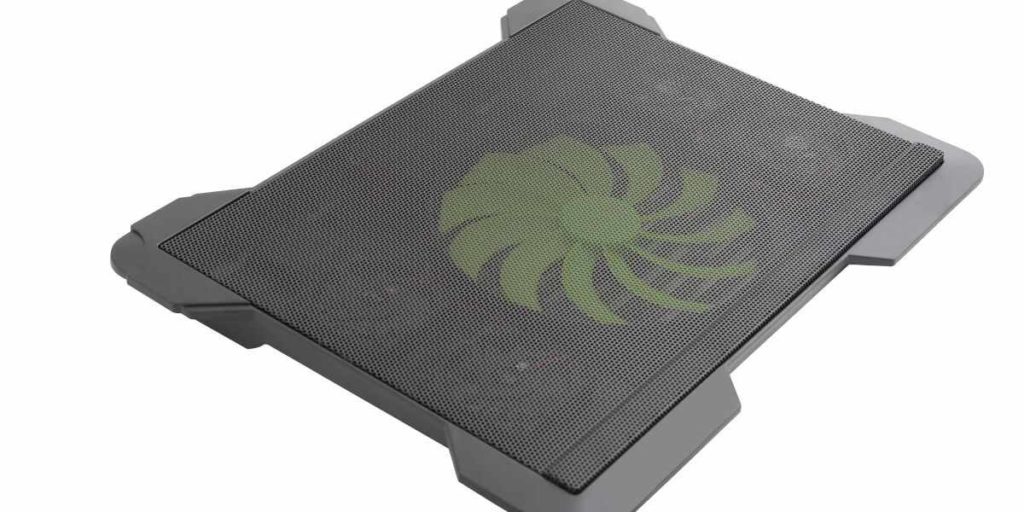
A cooling pad is a powered platform that sits beneath your laptop and uses one or more fans to push cool air against the underside of the chassis, improving heat dissipation and preventing the temperature buildup that causes thermal throttling — the processor deliberately reducing its own clock speed to avoid hardware damage. For photographers and video editors running demanding software for hours at a stretch, the difference between sustained peak performance and throttled output is measured in real minutes lost per session, and those minutes compound across a full working day. This guide gives you a clear, no-hedging answer on when a cooling pad earns its place in your kit and when it's just unnecessary clutter on your desk.
We'll cover the real signs you need one, what you gain immediately, how these pads serve creative workflows specifically, what to spend at each price tier, how to set one up correctly, and which myths are actively leading people toward bad purchasing decisions.
Contents
Not every laptop needs a cooling pad, and buying one without understanding your actual use case is money spent on a false sense of security. The framework is simple: if your laptop is thermally constrained during your real working sessions, a cooling pad delivers genuine, measurable gains; if it isn't, you'll barely notice the difference.
If your machine shows any of the following patterns during normal creative work, a cooling pad is a legitimate tool worth adding to your setup:
If your laptop runs persistently hot during sustained creative sessions, a cooling pad addresses the problem directly by restoring the airflow that poor desk positioning or thermal buildup has cut off, and the improvement is often immediate and easy to verify with monitoring software.
Pro tip: Flip your laptop over before buying any cooling pad and locate the intake vents — a pad with fans positioned directly below those vents will outperform a generic centered-fan model by a significant margin on real-world sustained temperatures.
There are legitimate scenarios where a cooling pad adds essentially nothing to your setup and the money is better spent elsewhere:
The argument for cooling pads isn't built on dramatic transformation — it's built on consistent, compounding small improvements that collectively change how your laptop feels and performs across a full working session.
A well-matched cooling pad with correctly positioned fans typically reduces laptop surface temperature by 5–12°C under sustained load, which sounds modest until you understand that most laptops begin throttling somewhere between 88 and 95°C, meaning even a 7°C drop keeps you comfortably inside the sustained performance window for the entire session instead of bouncing in and out of reduced clock speeds every few minutes.
When your laptop's internal cooling system doesn't have to compensate aggressively for poor external airflow, the internal fans spin at lower RPMs to maintain the same safe operating temperature, producing noticeably quieter operation during heavy tasks. If you record voiceover commentary for tutorial videos or do any ambient audio work alongside your photo editing, a quieter laptop environment makes a material practical difference. Pairing small hardware optimizations like this with the workflow habits covered in our guide to digital photography tips and tricks for beginners creates a meaningfully more efficient working environment without requiring expensive hardware upgrades.
Creative professionals place a specific and sustained kind of thermal stress on laptops that casual users never encounter, and understanding that distinction explains why cooling pads show up consistently in professional photography and video editing setups across all budget levels.

Culling a five-hundred-image RAW shoot in Lightroom Classic or Capture One pushes your CPU, RAM, and GPU continuously for extended periods without the natural pauses that other workloads provide, generating heat that thin aluminum laptops struggle to dissipate on their own chassis design. A cooling pad lets you maintain peak processing speed without hitting the thermal ceiling, which produces real, observable results:
If you're also managing high-volume media storage alongside demanding editing workflows, our SanDisk Ultra vs. Extreme comparison covers the read/write performance tradeoffs that affect how quickly cards transfer data to your editing machine between sessions.
Video editing is thermally brutal in a way that still-photography editing rarely matches at the same sustained intensity. Exporting a ten-minute 4K timeline in DaVinci Resolve or Adobe Premiere can push a laptop CPU to 90°C or higher for twenty-plus consecutive minutes of uninterrupted computational work, which is precisely where sustained thermal throttling compounds into real lost time across a full editing day. A cooling pad that holds your processor 8°C cooler across that entire export keeps it at its maximum boost frequency throughout the render, and across multiple exports per day, those saved minutes accumulate into something that actually affects your deliverable schedule.
Cooling pads span a wide price range, and the differences between tiers are real enough to matter for anyone running demanding creative software on a daily basis and expecting consistent results over time.
| Price Range | Fan Count | Build Quality | Best For | Verdict |
|---|---|---|---|---|
| $15–$25 | 1–2 fans | Basic plastic | Light editing, occasional use | Acceptable as a temporary fix |
| $25–$50 | 2–4 fans | Mesh + aluminum mix | Regular Lightroom/Photoshop sessions | Best value for most photographers |
| $50–$80 | 4–6 fans | Aluminum, height-adjustable | Heavy daily video editing | Worth it for professional daily use |
| $80+ | Variable speed, premium | Full aluminum, optional RGB | Power users, maximum thermal headroom | Diminishing returns for most workflows |
Budget pads do exactly one thing adequately: they elevate the laptop and push some air underneath the chassis, which is sometimes all that's needed when your only problem is working on a flat desk with no clearance below the machine. Don't expect dramatic temperature reductions from a single low-RPM fan, but don't dismiss these pads entirely if your editing needs are light and the budget is genuinely tight — even modest elevation and basic airflow improvement can take the edge off mild thermal buildup during short sessions.
This is where the real value lives for the majority of photographers and editors working regularly in Lightroom, Photoshop, or Premiere. Pads in this range typically include multiple fans with better airflow geometry, rigid mesh or aluminum surfaces that don't flex under the laptop's weight, and USB passthrough ports that preserve your existing port count without requiring a separate hub. Brands like Havit, Klim, and Thermaltake offer consistently well-reviewed options throughout this range. Start here unless you have a specific technical reason to go higher or lower.
Premium pads add adjustable fan speed controls, ergonomic tilt settings that improve both airflow clearance and typing posture during extended sessions, and more precise airflow geometry engineered to outperform mid-range designs under sustained maximum load. If you're running Resolve or Premiere for six or more hours daily, the build quality at this tier justifies the additional spend, particularly since mid-range fan motors tend to lose meaningful efficiency after twelve to eighteen months of sustained daily use at maximum load.
The most common cooling pad mistake isn't buying a bad product — it's buying a decent product and using it incorrectly, which eliminates most of the thermal benefit you paid for and leaves you wondering whether the accessory works at all.
Warning: Avoid cooling pads with soft rubber or foam contact pads that can partially block bottom vents under the laptop's weight — look for rigid mesh surfaces with fixed standoffs that maintain consistent airflow clearance across the entire underside of the chassis.
Follow these steps after unboxing to confirm you're actually getting the thermal improvement you bought the pad to achieve rather than assuming it's working based on feel alone:
Bad information about cooling pads circulates freely online, and acting on the wrong assumptions leads either to wasted money on hardware you don't need or to unwarranted confidence about thermal problems that are actively getting worse beneath the surface.
A cooling pad improves airflow from the outside of the machine, but it cannot fix internal thermal problems like dried thermal compound on the CPU die, clogged internal heatsink fins packed with years of accumulated dust, or failing internal fans that no longer move air efficiently through the chassis. If your laptop consistently hits 95°C even with a quality cooling pad running at full speed, the real solution involves opening the chassis and replacing the thermal paste — a repair most laptop technicians complete for a modest fee and one that makes a dramatic difference in machines more than three years old. Treat a cooling pad as a supplement to proper internal maintenance, not a substitute for it.
Fan placement, fan count, airflow volume, and surface rigidity vary dramatically between models, and a cheap single-fan pad with centrally positioned airflow placed beneath a laptop with rear-facing intake vents produces almost no measurable thermal improvement because the airflow geometry is completely mismatched to the machine's actual design. A pad that performs excellently under one laptop model may do essentially nothing useful under a different one simply because the intake vent layouts don't align with the fan positions — buy for your specific machine, not for the product photo.
Photography and video editing generate sustained thermal loads that rival gaming sessions in both intensity and duration, and the laptops creative professionals tend to favor — thin aluminum ultrabooks with high-resolution displays and premium build quality — have significantly less internal thermal headroom than dedicated gaming machines specifically engineered to dissipate heat under prolonged stress. A photographer culling a three-hundred-image RAW shoot in Lightroom applies as much sustained pressure to the CPU and RAM as an equivalent gaming session, without the brief natural pauses that occur during game loading screens and menu navigation. Cooling pads are as relevant to photographers and video editors as they are to any other category of power user.
Yes — when properly matched to your laptop's intake vent layout, a quality cooling pad typically reduces CPU temperatures by 5–12°C under sustained load, which is enough to keep most processors below the thermal throttling threshold and maintain consistent performance across an entire editing session without clock speed reductions.
Cooling pads are physically safe with any laptop including MacBooks, but Apple Silicon models (M1 and later) run so efficiently that cooling pads produce minimal measurable temperature reduction under typical creative workloads — the chips generate so little heat compared to Intel-based predecessors that external cooling rarely moves the needle in a meaningful way.
Budget cooling pads can produce noticeable fan noise in the 30–40 dB range at full speed, while quality mid-range and premium models typically operate between 18–25 dB at medium settings — quieter than most laptop internal fans running at full throttle and unlikely to interfere with audio recording in a controlled environment.
Technically yes, but you'll lose most of the benefit — soft surfaces block the cooling pad's own bottom intake and restrict the airflow the pad needs to function effectively. If you regularly work from soft surfaces, a rigid laptop stand with fixed legs that maintain clearance from the surface below is a more effective solution than a fan-based cooling pad on fabric.
Quality mid-range and premium cooling pads typically last three to five years of regular daily use before fan motor efficiency degrades noticeably; budget models often show reduced airflow performance within twelve to eighteen months of sustained daily use. Cleaning the fan grilles with compressed air every two to three months extends the useful life of any pad at any price point significantly.


About Editorial Team
The DigiLabsPro editorial team covers cameras, lenses, photography gear, and creative technology with a focus on helping photographers make informed buying decisions. Our reviews and guides draw on hands-on testing and research across a wide range of equipment, from entry-level beginner kits to professional-grade systems.
You can get FREE Gifts. Or latest Free phones here.
Disable Ad block to reveal all the info. Once done, hit a button below
