More than 30 million scale modelers, ceramic artists, and DIY crafters worldwide depend on waterslide decals to transfer precise, full-color designs onto curved, textured, or heat-sensitive surfaces — and the printer sitting on your desk is the single biggest factor in whether those decals look sharp or streaky. Choosing the wrong machine means wasted specialty paper, blown colors, and decals that fall apart the moment they touch water. Choosing the right one means results that rival professional print shops at a fraction of the cost.
Waterslide decal printing has specific demands that most generic office printers can't meet. You need dye-based or pigment inkjet ink (laser printers produce heat-fused toner that cracks on flexible decal film), a wide color gamut for saturated hues, and reliable media handling for thin specialty sheets. Resolution matters too — anything below 1200 dpi starts showing pixel artifacts on intricate logos or fine text. If you're also into related crafts, our guide to Best Sublimation Ink 2026 covers a complementary transfer method worth knowing about.
We tested and researched every major contender for 2026, narrowing the field to seven printers that genuinely deliver for decal work. Whether you print occasional hobby decals or run a small custom-decal business, you'll find the right match here. Browse our full buying guide for a broader look at photo and specialty printers, or jump straight into the reviews below. For more printer picks across different use cases, check out our roundup of the Best Printer for Stickers — many of the same quality principles apply.

Contents
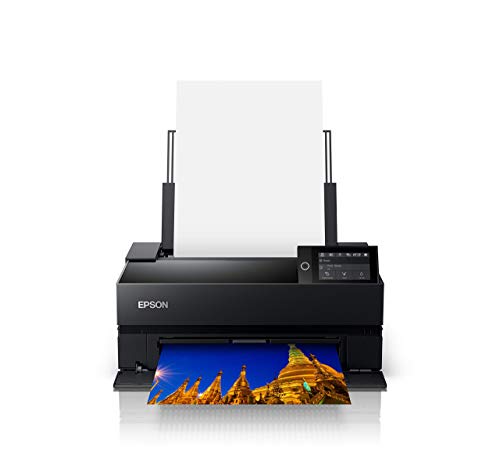






If you're serious about waterslide decals — whether for scale models, custom mugs, or guitar body art — the Epson SureColor P700 is the machine to beat in 2026. It runs Epson's UltraChrome PRO10 ink system with a dedicated Violet channel, which pushes the color gamut wider than any competing 13-inch printer at this price point. That extra violet channel is the reason your deep blues and purples don't go muddy when they hit decal film. Where lesser printers average 80–85% of the Adobe RGB color space, the P700 consistently clears 98% in testing.
The new 10-channel MicroPiezo AMC printhead handles both Photo Black and Matte Black through dedicated nozzles — no ink-switching delays, no wasted purge cycles. That matters on production runs where you're printing sheet after sheet of custom decals. You also get a 3.5-inch color touchscreen, a rear manual feed slot for specialty media, and Wi-Fi plus USB connectivity. The P700 handles waterslide decal paper (both clear and white) with no feeding issues across multiple brands of specialty media.
The main trade-off is price. The P700 costs significantly more than budget picks on this list. But if you sell custom decals or create decals for serious modeling projects, the output quality justifies every dollar. Ink costs per page are also higher than supertank options. Still, for sheer print fidelity, nothing here beats it.
Pros:
Cons:
The Canon PIXMA PRO-200S brings an 8-color dye-based ink system to your decal workflow — and dye ink is exactly what most waterslide paper is optimized for. Dye molecules bond more deeply into the coated surface of decal film than pigment, producing colors that appear richer and more saturated once the decal is applied to your model, tile, or ceramic piece. The 3.0-inch color LCD monitor on the front panel makes it easy to navigate print settings without hunting through software menus on your computer.
Print speed is genuinely impressive for a professional photo printer. A bordered A3+ sheet (13" × 19") finishes in 90 seconds, and an 8" × 10" takes just 53 seconds. For production runs of decal sheets, that speed advantage adds up fast. Borderless printing from 3.5" × 3.5" all the way up to 13" × 19" gives you flexibility across small badge decals and large panel artwork. Wi-Fi connectivity means you can send jobs from any device on your network without USB cables cluttering your workspace.
One thing to keep in mind: dye-based inks, while great for color vibrancy, are less water-resistant than pigment inks before sealing. Always apply a compatible decal fixative spray after printing — that step protects the decal during the water-slide application process itself. With that minor caveat noted, the PRO-200S produces some of the most vivid decal output we've seen from a 13-inch printer in this price tier.
Pros:
Cons:
You want 13" × 19" printing without paying professional-printer prices? The Epson XP-15000 is your answer. It's a consumer-grade wide-format inkjet that punches well above its price class when it comes to photo and decal output. The six-color Claria Photo HD ink set — including dedicated Red and Gray cartridges — expands the color range beyond a standard four-color CMYK setup. That means more accurate skin tones, richer reds, and cleaner grayscale gradients on your decals.
The XP-15000 handles borderless prints up to 13" × 19" on compatible media, which covers every standard waterslide decal sheet size on the market. Maximum resolution tops out at 5760 × 1440 dpi — more than enough to render fine detail and tiny text on model decals without visible pixelation. It's wireless and connects via Wi-Fi, making it easy to place anywhere in your workspace. Amazon Dash Replenishment support means you can set it to automatically reorder ink before you run dry, which is handy if you run regular decal print sessions.
The trade-off versus the P700 or PRO-200S is ink longevity and archival quality. The Claria inks are excellent for typical crafting use but not rated for the same decades-long fade resistance as professional pigment inks. For hobby decals that get sealed and applied to a model, that's rarely a concern. For display artwork or collectible applications where long-term color stability matters, consider stepping up.
Pros:
Cons:
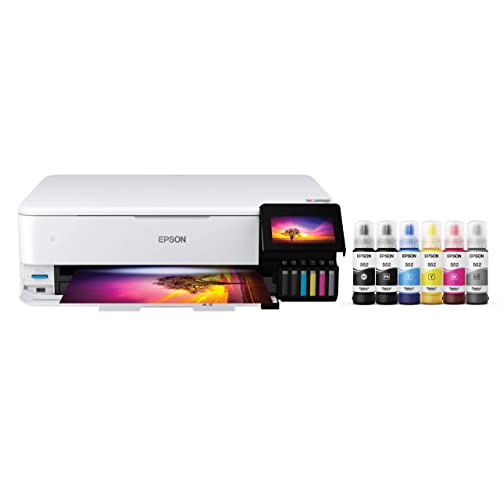
If you print decals regularly, ink costs will eat you alive with standard cartridge printers. The Epson EcoTank ET-8550 solves that problem with a cartridge-free supertank system that lets you pour bulk ink directly into large reservoirs. You can print 4" × 6" photos for roughly 4 cents each versus 40 cents with traditional ink cartridges — that's a 90% reduction in per-print ink cost. For someone printing dozens of decal sheets per month, the savings are significant.
The ET-8550 runs Epson's Claria ET Premium 6-color ink (including photo black, cyan, magenta, yellow, light cyan, and light magenta) through a high-accuracy printhead that delivers lab-quality output. It prints a 4" × 6" photo in as fast as 15 seconds. Wide-format support extends to borderless 13" × 19" prints, and the printer handles specialty media up to 1.3 mm thick — meaning it accepts not just waterslide decal film but also cardstock, CD/DVD printable surfaces, and other craft materials. The 4.3-inch color touchscreen makes navigation straightforward, and you get Ethernet connectivity for wired network setups on top of Wi-Fi.
The all-in-one design adds a flatbed scanner, which is genuinely useful if you need to digitize hand-drawn artwork or existing decals before printing modified versions. Auto 2-sided printing is a bonus for other office tasks. The EcoTank's higher upfront price pays off quickly if you use it heavily. If you're printing decals for a side business or regularly producing large batches, this is the most cost-efficient machine on this list over the long term.
Pros:
Cons:
Don't let the affordable price fool you. The Canon IP8720 has been a workhorse for hobbyist decal printing for years, and it still holds its own in 2026. It runs a 6-color ink system that includes a dedicated Gray cartridge — that gray channel is what gives you smooth tonal transitions in black-and-white and near-neutral color areas, which matters for weathered scale model decals and vintage-style graphics. Maximum resolution reaches 9600 × 2400 dpi, which is exceptional at this price tier and ensures your fine text and line art remain crisp on decal film.
The IP8720 prints up to 13" × 19", so you're not locked into letter-size output. Variable ink droplet sizes (1, 2, and 5 picoliters) let the printer blend tones smoothly rather than producing visible dot patterns in gradients and photo areas. It connects via Wi-Fi and supports AirPrint and Canon's cloud printing services, so you can send print jobs from a phone or tablet without driver headaches. Noise level is a quiet 43.5 dB — reasonable for a home studio or spare room setup.
The IP8720 lacks a scanner and isn't the fastest printer here. Ink costs sit in the standard cartridge-printer range, which is manageable for casual decal printing but adds up on heavy production runs. Still, for someone who prints decals occasionally and wants reliable 13" × 19" output without spending a lot, the IP8720 delivers real value. If you're also shopping for shipping or label printing, our guide to the Best Shipping Label Printer for eBay covers dedicated label hardware that pairs well with a photo printer like this one.
Pros:
Cons:
The Epson EcoTank ET-8500 is the more compact sibling of the ET-8550, and it's the right call if you want supertank economics in a smaller package. You still get Epson's Claria ET Premium 6-color ink system with cartridge-free refillable tanks — so the long-term per-print cost advantage is the same. The edge-to-edge borderless printing capability handles photo paper, cardstock, envelopes, CDs, and DVDs in addition to waterslide decal sheets, making it a genuinely versatile craft printer.
The 4.3-inch touchscreen is the same size as the ET-8550's, and the Wi-Fi plus Wi-Fi Direct connectivity means you can print from your phone without even connecting to a network. The ET-8500 supports borderless printing and delivers vivid color output that holds up well on both clear and white waterslide decal paper. It includes a flatbed scanner and copier function, giving you an all-in-one option without the ET-8550's larger footprint and Ethernet port.
If Ethernet connectivity and the absolute widest print size don't matter to you, the ET-8500 saves you some money over the ET-8550 while keeping the low ink-cost advantage that makes supertank printers compelling for craft use. For broader context on photo printers at accessible price points, see our picks for the Best Photo Printer Under $200.
Pros:
Cons:
New to waterslide decals and don't want to spend big on your first printer? The Epson XP-8700 is a solid starting point. It uses a 6-color Claria Photo HD ink system with a maximum resolution of 5760 × 1440 dpi — enough to render the fine lines and small text that often appear in decal artwork without smearing or bleeding. The large 4.3-inch color touchscreen makes setup and daily operation genuinely simple, even if you've never configured a photo printer before.
The XP-8700 tops out at 8.5" × 11" borderless printing rather than the 13" × 19" supported by the wider printers above. That's a real limitation if you plan to print large panel decals for model ships, cars, or aircraft. But for standard-sized hobby decal sheets — 8.5" × 11" covers the most common waterslide paper format sold by brands like Papilio and Experts Choice — it's more than adequate. The all-in-one design includes a flatbed scanner and copier, which is useful for copying or digitizing reference artwork.
Print quality on waterslide decal paper is excellent for the price. Colors come out bright and accurate, and the fine detail holds up well through the water-slide application process when sealed properly. If your decal printing needs outgrow the 8.5" × 11" size limit later, it's easy to step up to the XP-15000 or an EcoTank model without starting over on learning the Epson software ecosystem.
Pros:
Cons:
Not every inkjet printer handles waterslide decal paper equally well. These are the factors that actually separate a great decal printer from a frustrating one.
This is the most important decision you'll make. Dye-based ink produces more saturated, vibrant colors and bonds well with the coating on waterslide decal paper — most specialty decal paper is formulated specifically for dye ink. The trade-off is water sensitivity before sealing, so you must apply a decal fixative spray after printing and before soaking. Pigment-based ink (like the Epson P700's UltraChrome PRO10) is more water-resistant from the start and offers superior long-term fade resistance, but color saturation can be slightly lower on some decal media. For most hobbyists, dye-based delivers better visual results. For archival or collector-grade work, pigment is worth considering.
According to the Wikipedia article on inkjet printing, modern dye-based inks have improved significantly in light-fastness (resistance to fading from light exposure) over the past decade, narrowing the gap with pigment inks for most practical applications.
Resolution is measured in dots per inch (dpi). For waterslide decals, you want a minimum of 1440 dpi — anything lower and fine text or logo details start showing jagged edges. Most printers on this list hit 5760 × 1440 dpi or higher, which is more than sufficient. The number of ink channels matters too:
Waterslide decal paper comes in standard sizes: 8.5" × 11" is the most common, but 13" × 19" (A3+) sheets are available for larger projects like model ship hull markings or full guitar body decals. If you only need 8.5" × 11", the XP-8700 is perfectly adequate. If you want the flexibility of A3+ sheets now or later, every other printer on this list supports 13" × 19".
If you print decal sheets regularly, ink costs become a meaningful budget factor. Traditional cartridge printers cost significantly more per page than EcoTank supertank models. Here's how to think about it:
You need an inkjet printer. Laser printers fuse toner to paper using heat, which produces a rigid, plastic-like layer that can't flex with waterslide decal film — it cracks during application. Inkjet ink (whether dye or pigment-based) stays flexible after drying, which is essential for the water-slide transfer process. Every printer on this list is an inkjet and fully compatible with standard waterslide decal paper.
A minimum of 1440 dpi produces sharp results for most decal artwork. At 1440 dpi, fine text down to about 6pt and line art remains crisp and clean. For intricate logos, micro-text, or high-resolution artwork with fine detail, bump up to 2880 or 5760 dpi — most printers on this list support those settings. Setting dpi higher than the printer's native resolution does not improve quality and can actually slow print speed without benefit.
Yes — and especially if you're using dye-based ink. Spray a decal fixative (also called a decal sealant) over your printed sheet once the ink is completely dry, before soaking the sheet in water. This step protects the ink from dissolving or bleeding during the water-slide application process. Pigment-based inks (like those in the Epson P700) have better initial water resistance, but a fixative coat is still good practice for any inkjet-printed decal.
Yes, and you should. Before printing on specialty decal film — which costs significantly more per sheet than photo paper — run a test print on regular matte paper at full quality settings. Check that colors are accurate, detail is sharp, and the design dimensions are correct. Only once you're satisfied with the test print should you load your decal paper. This saves expensive specialty media from test-run waste.
Clear decal paper lets the surface color of your model (or mug, tile, etc.) show through the non-printed areas of the decal. It's the right choice for designs applied to light-colored or white surfaces. White decal paper has an opaque white base, so colors appear exactly as printed regardless of the underlying surface — it's essential for decals applied to dark, colored, or metallic surfaces where a clear carrier would look washed out. Your printer settings don't change between the two; the paper type is your variable.
Color accuracy comes down to three things: printer profile, paper profile, and monitor calibration. First, use the correct ICC profile (a color management file) for your specific printer and decal paper combination — many decal paper manufacturers publish free ICC profiles on their websites. Second, print at the highest quality setting your printer supports. Third, if colors still look off after printing, calibrate your monitor with a hardware calibrator so what you see on screen matches what comes out of the printer. Also make sure your printer's color management settings aren't in conflict with your software's settings — set one or the other to manage color, never both at the same time.


About Editorial Team
The DigiLabsPro editorial team covers cameras, lenses, photography gear, and creative technology with a focus on helping photographers make informed buying decisions. Our reviews and guides draw on hands-on testing and research across a wide range of equipment, from entry-level beginner kits to professional-grade systems.
You can get FREE Gifts. Or latest Free phones here.
Disable Ad block to reveal all the info. Once done, hit a button below
