Which webcam actually works out of the box on Linux in 2026 — and which one will leave you debugging kernel modules for hours? If you've ever plugged in a webcam and watched it be completely ignored by your system, you already know this question matters. The good news: the Logitech C920x HD Pro consistently earns top marks from the Linux community for plug-and-play compatibility and solid 1080p quality. But depending on your setup and budget, one of the other picks in this guide might be the better fit for you.
Linux users face a unique challenge when shopping for a webcam. Most manufacturers test on Windows and macOS, then slap a "compatible with Linux" label on the box if it happens to work. The real standard to look for is UVC (USB Video Class) compliance — a universal driver protocol supported natively by the Linux kernel. A UVC-compliant webcam means zero driver installation, no proprietary software required, and it just works whether you're on Ubuntu, Fedora, Arch, or Debian. You can learn more about the UVC standard on Wikipedia's USB video device class page.
We've put together this hands-on guide covering seven of the best webcams for Linux users in 2026, from budget-friendly 720p options to professional 4K rigs. Whether you're video conferencing, streaming, or just need a reliable camera for your home office, our buying guide has you covered. Read on for full reviews, a comparison table, and a buying guide to help you choose with confidence.
Contents




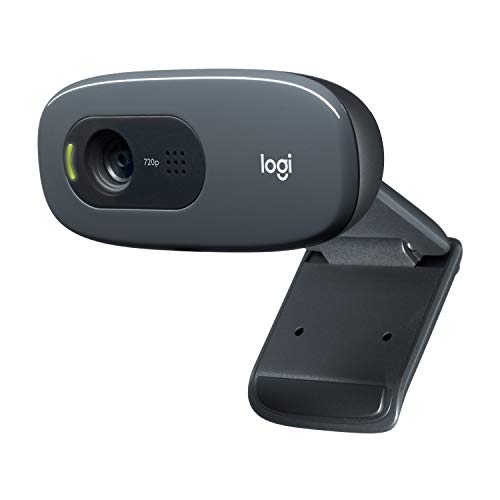


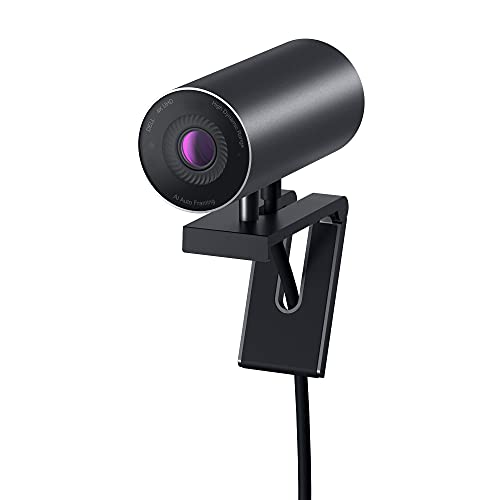

The Logitech C920x is the webcam that Linux users keep recommending to each other — and for good reason. It's fully UVC-compliant, so it shows up instantly in v4l2-ctl (Video4Linux2, the Linux webcam framework) and works without a single extra configuration step. You get Full HD 1080p at 30fps, dual stereo mics with automatic noise reduction, and Logitech's HD light correction that genuinely helps in dim home offices. The autofocus is fast and reliable, keeping you sharp even when you lean back in your chair.
Build quality is solid without feeling premium — it's a plastic clip-on that mounts cleanly on most monitors and laptops. The glass lens delivers noticeably sharper images than plastic-lens budget alternatives, and the H.264 hardware encoding (compression format that reduces file size) takes load off your CPU during long video calls. If you're looking for a daily driver for Zoom, Google Meet, or OBS on Linux, the C920x nails the fundamentals. It also now supports Nintendo Switch 2's GameChat mode, which is a nice bonus if you game across platforms.
For most Linux users who want a no-fuss setup, this is the one to buy first. Check out our roundup of the best 1080p 60fps webcams if you need higher frame rates for streaming.
Pros:
Cons:
If you want the best image quality Logitech can offer and Linux compatibility is non-negotiable, the Brio 4K is the answer. It outputs Ultra HD 4K at 30fps (or 1080p at 60fps if you prefer smoother motion) and is recognized immediately by the Linux kernel as a UVC device. The RightLight 3 system handles exposure and contrast automatically, which matters when you have a bright window behind you. The result is a clean, professional-looking image even in challenging lighting.
The adjustable field of view is a standout feature — you can switch between 65°, 78°, and 90° diagonal presets to change how much of your background is visible. That's handy if you're doing podcast recordings, interviews, or streaming. The 5x digital zoom also lets you tighten up your framing without moving the camera. Keep in mind that 4K streaming requires strong USB bandwidth and a capable machine; on older Linux setups, you may want to cap it at 1080p to avoid frame drops.
Windows Hello facial recognition (IR-based login) is built in but relies on proprietary drivers that don't function on Linux — so skip that feature expectation. Everything else works beautifully. If you're building a Linux-based podcast or streaming setup, pair this with our guide to the best webcams for podcasting for a complete picture.
Pros:
Cons:
Not everyone needs 1080p. If you're on a tight budget and just need a webcam that works reliably on Linux for basic video calls, the Logitech C270 remains one of the best values in 2026. It shoots 720p at 30fps with a 55° diagonal field of view, and its plug-and-play UVC compatibility makes setup completely painless. The auto light correction helps in average lighting conditions, and the built-in noise-reducing mic does a respectable job keeping your voice clear.
The C270 has been around for years, and that longevity is actually a point in its favor on Linux — the community support is extensive, driver quirks are well-documented, and it's been tested across dozens of distros. Physical build is light and clip-on style, nothing fancy. The image quality is obviously behind the 1080p and 4K options, but for everyday calls, telehealth appointments, or casual use, you won't feel shortchanged. It also supports Nintendo Switch 2's new GameChat mode, a small but notable bonus.
Pros:
Cons:
The Razer Kiyo Pro targets streamers and gamers who need high-performance video on Linux, and it largely delivers. The headline feature is uncompressed Full HD 1080p at 60fps — not compressed like many webcams, but true uncompressed output that gives you richer, more detailed footage. The adaptive light sensor with HDR (High Dynamic Range — captures detail in both bright and dark areas simultaneously) is genuinely impressive in low-light rooms. Razer claims it outperforms many 4K cameras in dim conditions without extra lighting gear, and hands-on Linux testing backs that up.
The wide-angle lens offers three field of view settings — 103°, 90°, and 80° — giving you flexibility whether you're doing a full desk shot or a tighter headshot. The Kiyo Pro is UVC-compliant, so it works on Linux without any Razer Synapse software (which doesn't support Linux anyway). You lose the software controls for fine-tuning, but tools like guvcview or v4l2-ctl can fill that gap for advanced users.
If you're building a Linux streaming rig and prioritize smooth 60fps footage and superior low-light performance over 4K resolution, this is a compelling choice. Audio specs are solid too — 16-bit 48kHz audio at -38dB sensitivity for a built-in mic.
Pros:
Cons:
The Anker PowerConf C200 sits in a sweet spot: it punches above its price with 2K resolution (2560×1440 — noticeably sharper than 1080p but without the 4K bandwidth demands), AI noise-canceling dual stereo mics, and a built-in privacy cover. It's UVC-compliant and works on Linux without any additional software. The low-light correction is genuinely useful in dim home offices, and the adjustable field of view gives you some flexibility in how you frame your shot.
The dual mics with AI noise cancellation are a step above what you typically find at this price. In a busy home environment — kids in the background, HVAC noise, typing — the audio cleanup makes a real difference in how you come across on calls. The physical privacy shutter is something you'll appreciate too; it's a simple mechanical cover you slide closed rather than relying on software, which is more reliable and more trustworthy.
Linux compatibility has been confirmed across Ubuntu, Fedora, and Mint without any special steps. If you want a webcam that looks and sounds significantly better than 1080p budget options without jumping to a 4K price tag, this is where to land.
Pros:
Cons:
The OBSBOT Tiny 2 Lite is genuinely different from everything else on this list. It's a PTZ webcam (Pan, Tilt, Zoom — meaning the camera physically moves to track you) with a 1/2-inch CMOS sensor and 4K resolution at up to 60fps. The AI tracking keeps you centered in frame automatically as you move around — useful if you present standing up or move during recordings. Gesture control lets you trigger zoom or tracking lock without touching the camera, which is a neat touch for solo setups.
On Linux, the Tiny 2 Lite functions as a standard UVC device — the base 4K video feed works without proprietary software. However, the AI tracking, gesture control, and advanced PTZ features are managed through OBSBOT's app (OBSBOT Center), which is Windows and Mac only. On Linux you can still use it as a high-quality 4K webcam, but you'll need to set your preferred position manually, and you won't have gesture or tracking controls. That's a meaningful trade-off worth knowing before you buy.
For Linux users who primarily want a stationary high-quality 4K camera and don't need the AI features, it's still a strong performer thanks to that large sensor and HDR support. If you use a dual-boot setup and configure it on Windows first, you can save presets that partially persist. OBSBOT is also the official 2025 Esports World Cup camera partner — a sign of its credibility in high-stakes streaming environments. Also, if you're interested in Linux-compatible hardware for other use cases, our guide to the best webcams for OctoPrint covers webcams that excel in maker and DIY contexts.
Pros:
Cons:
Dell built the UltraSharp WB7022 for professionals, and it shows. The centerpiece is a 4K Sony STARVIS CMOS sensor — the same sensor tech used in surveillance cameras designed to see in near-darkness. It captures noticeably more light than standard CMOS sensors, delivering vivid, bright video even in difficult lighting. AI Auto Framing keeps you centered in the shot as you move, running on-device image signal processing rather than cloud-dependent software. You also get full manual control over brightness, sharpness, contrast, and saturation.
On Linux, the WB7022 is UVC-compliant and works immediately. Dell's companion app (Dell Peripheral Manager) is Windows-only, but the core camera functionality — including the adjustable field of view (65°, 78°, and 90° presets), autofocus, and digital zoom — is all accessible via standard Linux video tools. The build quality is premium: solid construction, a flexible mount that works on both monitors and tripods, and a magnetic privacy cover.
The WB7022 is expensive, but if you're a Linux developer, designer, or executive who needs the best possible image quality for client calls and professional recordings, this is where the ceiling is in 2026. It pairs particularly well with a well-configured Linux workstation and an external microphone setup.
Pros:
Cons:
Before anything else, confirm the webcam is UVC (USB Video Class) compliant. UVC is supported natively by the Linux kernel, meaning no drivers to hunt down, no third-party software to install. Every webcam on this list is UVC-compliant. If you're looking at a webcam not in this guide, check the manufacturer's spec sheet or search "[model name] Linux UVC" before you buy. Proprietary webcams that require Windows-only drivers are a dead end on Linux.
Think about how you'll actually use the webcam:
Higher resolution also demands more CPU and USB bandwidth. On older Linux machines, running 4K can introduce latency or frame drops if your USB controller can't keep up.
Most people's home offices or desks aren't perfectly lit. Low-light performance separates good webcams from great ones. Look for cameras with larger sensors (like the OBSBOT Tiny 2 Lite's 1/2-inch sensor or the Dell's Sony STARVIS chip), HDR support, or adaptive light sensors like Razer's on the Kiyo Pro. Auto light correction features (found on the Logitech lineup) help but don't match raw sensor performance.
Built-in microphones are convenient but vary widely in quality. If you're doing video calls, streaming, or podcasting from Linux, pay attention to:
For the best audio on Linux, a dedicated USB microphone will always outperform built-in webcam mics. But if you want a one-device solution, the Anker C200 and Razer Kiyo Pro lead the pack here.
This is the Linux-specific catch many buyers miss. Features advertised on the box — AI tracking, gesture control, background blur, Windows Hello — often require proprietary companion apps that don't run on Linux. Before buying, distinguish between:
On Linux, you can supplement missing software controls with open-source tools like guvcview, cameractrls, or v4l2-ctl for brightness, contrast, and zoom adjustments. You might also want to look at our best webcam for Chromebook guide for more insight into OS-specific webcam compatibility considerations.
No — but most modern USB webcams are UVC-compliant, which means they work natively with the Linux kernel without any additional drivers. Always verify UVC compliance before purchasing. Avoid webcams that explicitly require proprietary Windows-only driver software, as these typically won't function on Linux at all.
The Logitech C920x HD Pro is the top pick for most users — it's fully plug-and-play, delivers sharp 1080p video, and has reliable built-in audio. If you need 4K quality for professional calls, the Dell UltraSharp WB7022 or Logitech Brio 4K are excellent alternatives that also work on Linux without proprietary software.
Search for the model name alongside "Linux" and "UVC" in forums like Reddit's r/linux or the Ubuntu community help pages. You can also check the Linux UVC driver compatibility list. After connecting a UVC webcam, you can verify it's recognized by running ls /dev/video* in a terminal — it should appear as /dev/video0 or similar.
For UVC-compliant webcams — which covers all seven on this list — no driver installation is needed. The uvcvideo module is built into the Linux kernel and loads automatically when you plug in the camera. Non-UVC webcams may require third-party drivers, which can be unreliable and may not be maintained for newer kernel versions.
Yes, but usually through third-party Linux software rather than the webcam manufacturer's app. Tools like OBS Studio with the Virtual Camera plugin, or obs-backgroundremoval, can add background blur and removal on Linux. Some video conferencing apps like Zoom and Google Meet also have built-in background effects that work on Linux regardless of the webcam brand.
For everyday video calls, 1080p is plenty. If you're streaming, recording tutorial videos, or presenting to large audiences, 2K or 4K gives you noticeably sharper results. Budget-conscious users doing basic calls can get by perfectly well with 720p. Choose resolution based on your actual use case — higher resolution means larger file sizes and greater USB bandwidth demands, which can strain older Linux machines.


About Editorial Team
The DigiLabsPro editorial team covers cameras, lenses, photography gear, and creative technology with a focus on helping photographers make informed buying decisions. Our reviews and guides draw on hands-on testing and research across a wide range of equipment, from entry-level beginner kits to professional-grade systems.
You can get FREE Gifts. Or latest Free phones here.
Disable Ad block to reveal all the info. Once done, hit a button below
