Imagine spending an afternoon scrolling through laptop listings, trying to figure out which Chromebook can actually handle Lightroom Web, Pixlr, or Google Photos without grinding to a halt. It's a real challenge — most spec sheets don't tell home photographers what they actually need to know. Our team rounded up the top options for 2026 so most buyers can skip the guesswork and get straight to editing.
Chromebooks have come a long way. The latest Chromebook Plus models meet Google's baseline requirements for AI features and heavier workloads, making them genuinely viable for photo editing in the browser and via Linux apps. For anyone who wants to compare across form factors, our Best Budget Laptop For Photoshop guide covers Windows alternatives that may also be worth a look.
We evaluated seven Chromebooks across display quality, processor performance, RAM, build, and real-world usability for image editing. Below is what we found — organized so anyone shopping for a photo-editing Chromebook can make a confident call. For broader context on display hardware, the Wikipedia overview of Chromebooks is a solid starting point for understanding the platform's evolution. Also see our full buying guide for additional categories.

Contents





The Acer Chromebook Spin 714 slots in as our top overall pick for photo editing in 2026. At its core sits the 13th Gen Intel Core i5-1335U — a 10-core chip (2 Performance + 8 Efficiency) that handles multi-tab Lightroom Web sessions, Pixlr E exports, and RAW file previews without the sluggishness many Chromebooks show under load. Intel's benchmark data puts this processor above the older i7-1270P in sustained workloads, which is exactly what matters when processing a batch of wedding shots.
The 14-inch WUXGA (1920×1200) IPS-level CineCrystal touchscreen is a genuine highlight. Colors look accurate, viewing angles are wide, and the 16:9 panel gives just a touch more vertical real estate than a standard 1080p display — useful when editing in portrait crops or working with long editing panels. Intel Iris Xe Graphics (integrated) handles color rendering well enough for web-based tools. The 2-in-1 360-degree hinge lets most users flip into tablet mode for stylus-based retouching if needed.
8GB of LPDDR4X RAM is the main constraint. It's workable for single-app photo editing, but anyone planning to run Linux-side apps like GIMP alongside a browser will feel some pressure. The 128GB PCIe SSD is fast enough but fills up quickly with RAW files — cloud or external storage is almost mandatory. Wi-Fi 6 and Bluetooth 5.2 round out a well-balanced package.
Pros:
Cons:
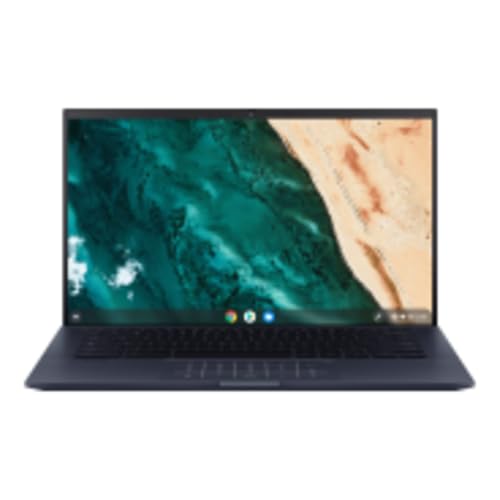
The ASUS Chromebook Enterprise CX9 is built for professionals who need real headroom. With an Intel Core i5-1135G7 running up to 4.2GHz across 4 cores, 16GB of RAM, and a 256GB SSD, this machine handles photo editing workloads that would make most 8GB Chromebooks stutter. The 14-inch FHD (1920×1080) touchscreen is crisp and accurate — good enough for color-critical work in Lightroom Web or Adobe Express.
The CX9's enterprise pedigree shows in its build: the chassis feels premium, the hinge is tight, and the keyboard has a confident typing feel. For anyone running Linux-side GIMP or Darktable alongside cloud apps, the 16GB RAM configuration is a real differentiator. The 256GB SSD also provides meaningful local breathing room compared to 128GB options — though serious RAW shooters will still want an external drive.
The trade-off is price. The CX9 sits at the higher end of the Chromebook market. For buyers who are debating whether to invest more in storage or processing power, our Best Graphics Card For Photo Editing guide provides useful context on how processing hardware affects editing performance more broadly.
Pros:
Cons:
The Acer Chromebook Plus 516 GE was designed with cloud gaming in mind, but its specs translate surprisingly well to photo editing. The 16-inch WQXGA display at 120Hz is the headline feature — resolution and screen real estate that most photo editors would pay a premium for. Crisp detail, vivid colors, and smooth scrolling through large galleries all benefit from that panel. The Intel Core 5 120U processor and 8GB LPDDR5 RAM keep things moving in typical editing scenarios.
The 256GB SSD provides more local storage than many competitors, and Wi-Fi 6E (the "E" adds the 6GHz band for faster speeds in congested environments) makes cloud-based editing tools more responsive. The RGB keyboard adds a bit of personality, though most photo editors will care more about the display than the lighting effects.
The 16-inch form factor does mean this isn't the machine for anyone who edits on the go. It's large and not especially light — better suited to a desk setup than a coffee shop workflow. This is a renewed (refurbished) listing, so buyers should factor in Amazon's renewed guarantee and check the condition grade carefully.
Pros:
Cons:
The Lenovo IdeaPad Flex 5i Chromebook Plus strikes a strong balance between versatility and value. The 360-degree hinge lets most users switch between Laptop, Tablet, Flip, and Yoga modes — a genuine advantage for anyone who edits on-the-go or prefers a tablet form factor for touch-based retouching. The 14-inch WUXGA (1920×1200) IPS display at 300 nits is bright enough for indoor use, and the touch layer responds well to stylus input.
Under the hood, the Intel Core i3-1315U (6 cores, 8 threads, up to 4.5GHz) handles most photo editing tasks without complaint. 8GB LPDDR4x soldered RAM means no upgrade path, but it's adequate for web apps and lighter Linux-side tools. Storage is an interesting configuration: 128GB eMMC internal plus a 128GB SD card, giving 256GB total — though eMMC is slower than PCIe SSD for app loading. A 12-month subscription to 2TB Google One cloud storage helps offset local limits.
The FHD 1080p webcam with privacy shutter is a nice touch for video calls between editing sessions. 4K output via USB-C or HDMI is supported, so connecting to an external color-accurate monitor is straightforward for more demanding editing work.
Pros:
Cons:
HP's Chromebook Plus x360 14 is the accessible entry point in this roundup. The Intel Core i3-N305 (an efficiency-focused processor built on Intel 4 process technology) keeps the price down while still meeting Chromebook Plus requirements. For casual photo editors — someone who primarily uses Google Photos, Snapseed, or Lightroom Web on a budget — this chip gets the job done. The 14-inch FHD IPS touchscreen delivers vibrant colors and solid viewing angles.
Intel UHD Graphics handles 4K streaming without breaking a sweat, and the touch display makes navigation intuitive. 8GB RAM and 128GB UFS (Universal Flash Storage — faster than eMMC, slightly behind PCIe SSD) provide reasonable everyday performance. The x360 hinge gives the flexibility most casual users want.
Where this machine shows its limits is in sustained heavy tasks: processing large RAW batches, running Linux apps, or keeping many browser tabs open will push the i3-N305 harder than a Core i5 at this configuration. For home users who mostly edit JPEGs and occasional RAWs, it's a compelling value. Anyone who needs more processing muscle should step up to the Acer Spin 714 or the ASUS CX9.
Pros:
Cons:
The ASUS Chromebook Flip CX5 offers a 15.6-inch editing canvas at a renewed price that makes it attractive for anyone prioritizing screen size on a budget. The 15.6-inch FHD NanoEdge display (NanoEdge refers to ASUS's slim-bezel panel design) delivers wide viewing angles and strong color reproduction — real advantages for photo work where color accuracy matters. The touch layer is responsive, and the display's brightness holds up well in typical indoor environments.
Powered by the Intel Core i3-1115G4 (Tiger Lake, up to 4.1GHz on 2 cores), the CX5 handles photo editing in Google Photos, Polarr, and Lightroom Web smoothly. The 128GB PCIe SSD is notably faster than eMMC alternatives at this tier, and 8GB LPDDR4 RAM keeps browser-based editing sessions running without frequent tab reloads. The backlit keyboard is a practical addition for low-light editing sessions.
Wi-Fi 6 ensures solid connectivity for cloud-dependent workflows. The main consideration here is that this is a renewed (refurbished) unit, so buyers should review the Amazon Renewed guarantee and confirm the condition rating. For anyone who edits photos connected to an external tablet, our Best Tablet For Adobe Illustrator guide covers drawing tablet options that pair well with Chromebooks.
Pros:
Cons:
The Google Pixelbook Go earns its place in this roundup on portability alone. At barely 1kg and 13mm thin, it's the machine most on-the-go photographers will reach for. Up to 12 hours of battery life means an all-day shoot followed by an editing session is realistic without hunting for an outlet. The fast-charge feature adds roughly 2 hours of use from just 20 minutes on the charger — genuinely useful in the field.
The 8th Gen Intel Core processor (depending on configuration) is older than the competition in this list, but it remains capable for web-based photo editing. Google Photos, Snapseed, Pixlr Express, and Lightroom Web all run comfortably. The grippable magnesium chassis feels premium without the weight penalty. The keyboard — originally praised for its "hush keys" quiet typing — is excellent for long editing and writing sessions.
Where the Pixelbook Go falls short for serious photo editing is in raw processing power. The aging chip and typical 8GB/128GB configuration don't match the Chromebook Plus tier in multi-task performance. Anyone processing high-resolution RAW files or running Linux-based tools will notice the ceiling. For buyers where portability is the top priority and editing is primarily JPEG-based, it remains a polished choice in 2026.
Pros:
Cons:
The display is the single most important spec for photo editing. A few things to evaluate:
RAM and processor choice directly determine how smoothly editing sessions run. Here's how to think about it:
Photo files — especially RAWs — eat through storage fast. What to look for:
How and where most buyers edit matters as much as raw specs:
Yes — with the right apps and a capable model. Web-based tools like Lightroom Web, Google Photos, Snapseed, Pixlr E, and Polarr run well on modern Chromebooks with 8GB+ RAM and an i5-class processor. Linux app support also unlocks desktop software like GIMP and Darktable. The experience isn't identical to a Windows workstation, but for most hobbyist and semi-professional needs, a Chromebook Plus model is genuinely capable in 2026.
8GB RAM is workable for web-based photo editing with one primary app open. It gets tight when running multiple tabs, Linux apps, and file management simultaneously. Anyone planning to use Linux-side tools like GIMP alongside cloud apps should prioritize a model with 16GB — like the ASUS Chromebook Enterprise CX9 in this roundup.
Chromebook Plus is Google's certification program (launched in 2023) that guarantees a minimum spec floor: at least an Intel Core i3 12th Gen or equivalent, 8GB RAM, 128GB storage, and a 1080p IPS display. These requirements align directly with photo editing needs. Chromebook Plus models also receive guaranteed AI feature support, which is increasingly relevant for tools like Google Photos' Magic Eraser and generative fill features.
Chromebooks can open and edit RAW files using web-based Lightroom (requires an Adobe Creative Cloud subscription), as well as Linux apps like Darktable and RawTherapee when Linux support is enabled. RAW editing is more demanding than JPEG — our team recommends at minimum an i5 processor and 8GB RAM for smooth RAW workflow. Larger RAW files from modern mirrorless cameras will push even mid-range Chromebooks.
A touchscreen adds value primarily for stylus-based retouching and tablet-mode use. For mouse-and-keyboard editing workflows, a non-touch display isn't a disadvantage — and touch panels can occasionally add unwanted glare. Most Chromebook Plus models include touchscreens as standard. Our team suggests prioritizing display color accuracy over touch support if a choice has to be made.
The main difference is software access. Windows laptops run desktop versions of Photoshop, Lightroom, and Capture One natively, giving access to the full feature set. Chromebooks rely on web apps or Linux-layer alternatives, which cover most hobbyist needs but lack some professional-grade controls. For buyers coming from a Windows editing setup, our Best Budget Laptop For Photoshop guide compares Windows options that may better match a desktop-software workflow.


About Editorial Team
The DigiLabsPro editorial team covers cameras, lenses, photography gear, and creative technology with a focus on helping photographers make informed buying decisions. Our reviews and guides draw on hands-on testing and research across a wide range of equipment, from entry-level beginner kits to professional-grade systems.
You can get FREE Gifts. Or latest Free phones here.
Disable Ad block to reveal all the info. Once done, hit a button below
