The Canon Pixma Pro-200S is our top pick for Mac users in 2026 — it delivers professional-grade color accuracy with a dye-based ink system that makes every photo pop off the page. If you shoot photos on a Mac and you need prints that hold up to gallery scrutiny, this is where you start your search.
Choosing the right photo printer for a Mac isn't just about resolution or ink count. macOS has its own color management pipeline — ColorSync — and not every printer plays nicely with it. A printer that looks great on a Windows box can produce muddy, color-shifted results the moment you connect it to an iMac or MacBook. In 2026, the gap between consumer and professional photo printers has narrowed considerably, but the difference in output quality between a well-matched machine and a poorly chosen one is still stark. You want a printer where the driver integrates cleanly, where ICC profiles are available and well-supported, and where the ink system is built for photographic output — not just document printing.
This guide cuts through the noise. Whether you're a portrait photographer needing precise skin tones, a fine art printer chasing the widest possible color gamut, or someone who just wants quick 4×6 prints of vacation shots, you'll find the right match here. We've evaluated seven of the best photo printers available for Mac in 2026, ranging from compact snapshot printers to wide-format professional rigs. Before you dive into the individual reviews, check out our full buying guide for a broader look at what to consider when shopping for photo printing gear. And if you're thinking about the full creative workstation picture, our guide to the best graphics card for photo editing covers the display and compute side of the equation.

Contents





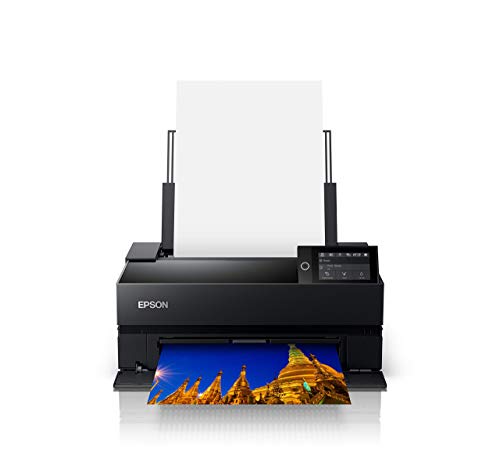


The Canon Pixma Pro-200S sits at the intersection of professional output and practical pricing, and for Mac users, it's the easiest recommendation we can make in 2026. It runs an 8-color dye-based ink system — ChromaLife100+ — that produces a strikingly wide color gamut for photographic subjects. Skin tones are rendered with the kind of warmth and accuracy that photographers expect from a dedicated photo printer, and saturated colors like deep blues and vivid reds hold up without looking garish or pushed. The 3-inch LCD display on the front panel makes it simple to check ink levels and run maintenance routines without opening a driver window on your Mac.
What makes the Pro-200S genuinely stand out for Mac users is its seamless macOS compatibility and ICC profile support. Canon provides downloadable ICC profiles for all of their recommended paper types, and the printer integrates cleanly into the ColorSync workflow built into macOS. If you shoot in Adobe RGB and print through Lightroom or Photoshop, your color management chain stays intact. The printer supports borderless output up to 13×19 inches, handles roll paper, panoramic formats, and art papers, and does all of it at a speed that doesn't require you to plan a coffee break around every print run. It's a versatile, well-rounded machine that earns its place at the top of this list.
For photographers who primarily print on glossy or luster paper and want the most vibrant, lifelike colors possible, the dye-based system here is a strong choice. Where pigment-based systems tend to win on archival longevity for fine art papers, dye inks on glossy media look extraordinary — and Canon rates these prints at up to 200 years of fade resistance under glass, which is more than adequate for most applications. If you also work with Photoshop on a tighter budget, our roundup of the best budget laptops for Photoshop is worth a look to complete your workflow.
Pros:
Cons:
If you want lab-quality photos from a compact all-in-one that fits on a home office desk, the Epson Expression Photo XP-8800 is exactly what you're looking for. This printer runs a 6-color Claria Photo HD ink system that delivers rich, detailed output at resolutions suited for photographic prints up to 8.5×11 inches. The six-ink setup — which adds red and gray to the standard CMYK quartet — expands the color gamut meaningfully, particularly in the warm tones and subtle shadow gradations where cheaper four-color systems fall apart.
Speed is one of the XP-8800's most impressive credentials. It delivers a 4×6 borderless photo in as little as 10 seconds, which is genuinely fast for a six-color photo printer at this price point. The 4.3-inch color touchscreen makes navigation intuitive, and Epson's Easy Mode gives you a simplified interface that's great for quick prints without diving into driver settings on your Mac. The built-in scanner and copier round out the package, making this a practical everyday machine rather than a dedicated photo output device that you pull out only for special occasions.
For Mac users, Epson's driver ecosystem on macOS is mature and reliable. The XP-8800 connects via Wi-Fi, so you can print wirelessly from your Mac, iPhone, or iPad without fussing over cables. Borderless prints up to 8.5×11 come out looking crisp and professionally finished, with smooth tonal transitions and accurate color rendering that rivals prints from a retail photo lab. If your printing volume is moderate and you want an all-in-one that doesn't sacrifice photo quality, the XP-8800 delivers the best value in this category.
Pros:
Cons:
Not every Mac user needs a full-size photo printer sitting on their desk. If you're a photographer who prints on the go — at events, in the field, or at family gatherings — the Canon Selphy CP1500 fills that role better than anything else on this list. It uses dye-sublimation printing technology rather than inkjet, which means each print is instantly dry, water-resistant, and rated for up to 100 years of fade resistance. You hand someone a print and it's immediately ready to go into a frame or an album, without the wait time that wet inkjet prints require.
The CP1500's sleek, modern design is genuinely portable — it's about the size of a thick hardcover book, and Canon offers an optional battery pack that lets you run it entirely untethered. Smartphone connectivity via Wi-Fi makes printing from your iPhone or iPad completely wireless, and the Canon PRINT Inkjet/SELPHY app gives you straightforward controls for layout and image adjustments. For Mac users, the USB connection works reliably with macOS, and setup is straightforward.
The trade-off here is obvious: the Selphy prints at postcard size, up to 4×6 inches. It's not a machine for producing gallery-ready 13×19 prints. But for what it does — instant, portable, durable photo prints that look great and last for generations — it's unmatched. If you need a compact printer for events or social occasions and you want prints that stand the test of time, the CP1500 earns its spot on this list without qualification.
Pros:
Cons:
The Epson SureColor P700 is where this list steps into serious professional territory. It's a 13-inch wide-format printer built around Epson's UltraChrome PRO10 pigment ink system with a dedicated Violet channel — ten colors in total, including both Photo Black and Matte Black with dedicated nozzles for each. That means no ink switching delays when you move between glossy and matte papers. You load your paper, you print, and the right black ink fires automatically. For a working photographer or fine art printer, that workflow efficiency matters enormously.
Pigment-based inks give the P700 a significant archival advantage over dye-based systems. Prints on compatible media are rated for museum-quality longevity, and the UltraChrome PRO10 formulation produces deep, rich blacks alongside a remarkably wide color gamut. The addition of the Violet ink channel expands coverage in the blue-violet range of the spectrum — an area where many 8-channel systems leave visible gaps. If you print landscapes with complex skies, fine art with delicate gradations, or portraits requiring accurate cool tones, the Violet channel makes a visible difference.
Epson's macOS driver for the SureColor line is among the best in the industry. The P700 integrates directly with Lightroom, Photoshop, and other Creative Cloud applications on Mac, and Epson provides a comprehensive set of ICC profiles for their media lineup as well as third-party fine art papers. The printer handles cut sheets up to 13×19 and roll paper up to 13 inches wide, giving you the flexibility to run panoramic prints and continuous roll jobs. For professional photographers who want maximum quality from a compact desktop footprint, the P700 is the standard against which others are measured.
Pros:
Cons:
If the P700's 13-inch width isn't enough — and for many professional photographers, it isn't — the Epson SureColor P900 steps up to 17-inch wide-format output without requiring you to move into commercial-grade equipment. This bundle includes Ethernet and USB cables plus a fiber cleaning cloth, giving you everything you need to get the machine running in a studio or office environment from day one. The P900 uses the same UltraChrome PRO10 pigment ink technology as the P700, so you get the same outstanding color accuracy, dedicated black ink channels, and archival-grade output — just scaled up for larger media.
The P900 is designed as a complete hardware solution for photographers, artists, and designers who need large prints on a regular basis. It handles media up to 17 inches wide in cut sheet and roll form, which opens the door to printing dramatic landscape panoramas, large portrait prints, and wide fine art reproductions without sending files to an outside lab. Smooth tonal transitions and accurate color reproduction are hallmarks of the UltraChrome PRO10 system, and the P900 delivers both with consistency across long print runs — something that matters when you're producing a series of prints for an exhibition or client delivery.
For Mac users, the P900's driver and ICC profile ecosystem mirrors the P700. Epson's SpectroProofer compatibility and Advanced Black and White mode give you precise control over monochrome output — a feature that serious black-and-white photographers will find indispensable. The Ethernet connection option makes it easy to integrate the P900 into a studio network where multiple Macs share access to the printer. If you produce large-format output regularly and want to keep it in-house rather than outsourcing to a lab, the P900 is your machine.
Pros:
Cons:
Canon's imagePROGRAF PRO-310 is a 13-inch professional printer built around a 9-color pigment ink system plus Chroma Optimizer — a total of 10 channels — that produces gallery-quality prints with impressive tonal range and deep shadow detail. The Matte Black ink channel is particularly noteworthy: Canon's formulation delivers enhanced black density with a broader dark area reproduction range than most competing systems at this price point, which translates directly into more impactful prints on matte and fine art papers.
The PRO-310 introduces Canon's Anti-Clogging System and Skew Correction, two practical engineering decisions that improve real-world reliability. The Anti-Clogging System reduces the frequency of nozzle checks and head cleanings that plague some inkjet printers after periods of inactivity — a genuine benefit if you print in batches rather than continuously. Skew Correction ensures that sheets feed and print straight, which matters when you're running expensive fine art paper through the machine. These aren't flashy features, but they're the kind of thoughtful engineering that makes a printer a pleasure to use day after day.
macOS integration is clean and well-documented. Canon provides ICC profiles for a wide range of their recommended media, and the Professional Print & Layout software for Mac gives you granular control over color management, layout, and paper handling. The 3-inch color LCD monitor on the front panel lets you navigate settings and monitor print jobs without switching to your Mac screen. For photographers who want a mid-range professional machine that handles fine art and photographic media with equal capability, the PRO-310 deserves serious consideration. You can also compare its printing category against our review of the best printers for screen printing if you need a different type of output for creative projects.
Pros:
Cons:
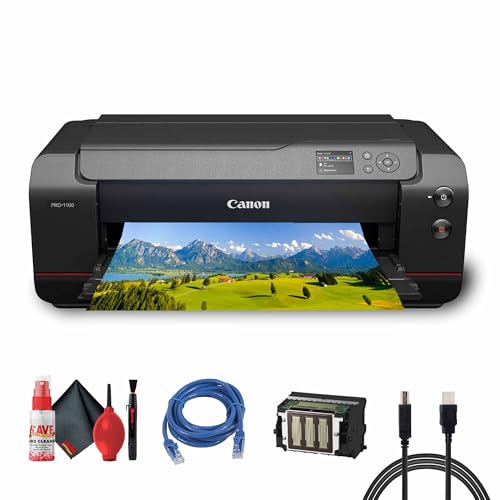
The Canon imagePROGRAF PRO-1100 is the flagship choice on this list — a 17-inch professional printer running Canon's 11-color LUCIA PRO II pigment ink system with Chroma Optimizer, delivering color accuracy and gamut coverage that sets the standard for desktop wide-format printing in 2026. The LUCIA PRO II formulation produces a wider color gamut than its predecessor, with improved reproduction of dark areas, complex shadow gradations, and subtle hue shifts that make the difference between a technically correct print and a genuinely stunning one. This bundle includes a cleaning kit, printer cable, and Ethernet cable — everything you need for professional installation right out of the box.
What separates the PRO-1100 from every other printer on this list is the engineering depth behind its reliability systems. The Anti-Clogging Technology doesn't just monitor nozzles — it automatically switches to a backup nozzle if a blockage is detected mid-print, preventing ruined sheets on expensive fine art media. That's a critical capability when you're printing on $10-per-sheet paper and you can't afford to waste materials. The Air Feeding System further ensures precise paper handling across a wide range of media thicknesses and textures, from thin glossy photo paper to heavy cotton rag fine art stock. The Chroma Optimizer top coat produces a uniformly smooth gloss finish that eliminates the bronzing and gloss differential artifacts that plague pigment ink systems on glossy papers.
For Mac users running a professional photographic or fine art printing operation, the PRO-1100 represents the apex of what a desktop machine can do in 2026. The macOS driver is comprehensive, ICC profiles are available for a vast library of compatible media, and the printer pairs seamlessly with Lightroom, Photoshop, and Canon's own Professional Print & Layout application. It connects via both USB and Ethernet, making it suitable for shared studio networks. This is the machine you buy when you want to eliminate the middle step of sending files to a print lab and take complete control of your output from screen to paper. If you're building out a full photo editing and printing workstation, pair this with guidance from our best graphics card for photo editing guide to ensure your display and compute setup matches the quality of your output.
Pros:
Cons:
The single most important choice you make when buying a photo printer for Mac is ink technology, and the answer depends on what you print and how you display it. Inkjet printing splits broadly into two camps: dye-based and pigment-based systems. Dye inks produce brighter, more vivid colors on glossy media — they're the better choice for portraits, event photos, and anything that will be displayed under glass. Pigment inks have superior archival longevity and water resistance, and they perform better on matte, fine art, and cotton rag papers. If you print fine art or plan to display prints in non-archival conditions without glass, go pigment. If your primary output is glossy photographic prints that will be framed under glass, dye is a strong contender.
Not all photo printers are equally well-supported on macOS. Look for printers that provide native macOS drivers — not just AirPrint or generic drivers — along with downloadable ICC profiles for their recommended media. macOS's ColorSync framework is powerful, but it only works correctly when the printer and media profiles are accurate. Canon and Epson both maintain strong Mac driver development, and their professional lines in particular receive regular updates. Before buying, verify that the printer you're considering has a current macOS driver compatible with your version of macOS. Also check whether the manufacturer provides ICC profiles for the paper types you plan to use — without accurate profiles, even the best printer will produce color-shifted output.
Think carefully about the largest print size you'll realistically need. A 13-inch wide-format printer like the Canon Pro-200S or Epson P700 handles everything from wallet prints to dramatic 13×19 sheets — which covers the vast majority of photographers. If you produce large exhibition prints regularly, a 17-inch machine like the Epson P900 or Canon PRO-1100 eliminates the need to outsource to a print lab. Also consider media flexibility: does the printer handle roll paper for panoramic prints? Does it accept thick fine art papers and canvas? The more media types a printer can handle, the more creative freedom you have without buying a second machine.
The purchase price of the printer is only the beginning. Photo printers with many individual ink channels — 10 or 11 colors — have higher ongoing ink costs than simpler systems, but they also waste less ink on test prints and cleanings when they're well-maintained. Calculate the cost per print for your expected volume and media type before committing. Dye-based systems typically cost less per print on glossy media; pigment systems cost more per print but produce prints that last longer without special handling. If you print infrequently, consider a printer with an Anti-Clogging System to minimize wasted ink during maintenance cycles. Also factor in whether the printer takes individual or combined cartridges — individual cartridges let you replace only the color you've exhausted, which reduces waste on low-volume machines.
Canon and Epson's professional photo printers work very well with Macs, but "out of the box" varies by model. Most require you to download a dedicated macOS driver from the manufacturer's website — the driver bundled via AirPrint is functional but lacks the color management controls and media settings you need for professional photo output. Download the full driver, install the manufacturer's ICC profiles for your paper types, and configure your print workflow through Lightroom or Photoshop's color management settings for the best results.
Dye inks produce more vivid, saturated colors on glossy and luster photo paper and are generally less expensive per print. Pigment inks offer superior archival longevity, better water and fade resistance, and perform better on matte and fine art papers. For glossy photographic prints displayed under glass, dye ink is competitive. For fine art prints, matte media, or prints that will be exposed to light and humidity without protection, pigment is the professional standard in 2026.
Yes, but with caveats. All the printers on this list accept third-party media, but you'll need to source ICC profiles for those papers — either from the paper manufacturer or by profiling the combination yourself with a colorimeter. Reputable fine art paper brands like Hahnemühle, Canson, and Ilford provide ICC profiles for major Canon and Epson printers on their websites. Using third-party paper without a proper ICC profile will produce color-shifted results regardless of how good the printer is.
For most home and enthusiast photographers, a 13-inch wide-format printer is the sweet spot. It handles standard photo sizes up to 13×19 inches, covers the vast majority of photographic output needs, and fits on a standard desk. If you regularly produce exhibition prints, sell fine art prints, or need to output wide panoramic images, a 17-inch machine gives you the extra width without stepping into commercial printer territory. Compact snapshot printers like the Canon Selphy are ideal for portable use and event printing but can't replace a full-size inkjet for quality photographic work.
For printers with Anti-Clogging Systems like the Canon PRO-310 and PRO-1100, maintenance requirements are minimal — the printer monitors its own nozzle health and handles most issues automatically. For other inkjet photo printers, run a nozzle check and cleaning cycle if you haven't printed in more than two weeks, or if you notice banding or color inaccuracies in your output. Regular light use is actually the best maintenance strategy — printing a few test images weekly keeps the ink flowing and the nozzles clear. Store the printer in a dust-free environment with the cover closed when not in use.
A dedicated photo printer makes sense if you print regularly, need quick turnaround, want complete control over color management, or produce a high enough volume that per-print lab costs exceed the cost of ownership. If you print fewer than 20 prints per month, a print lab may be more economical. But if you're a working photographer, a fine art printer, or someone who needs to proof and iterate on prints quickly, owning your own machine pays for itself in creative control and time saved — and the quality from a properly calibrated professional printer rivals what a retail lab can produce.
Buy the printer that matches how you actually print — not the one with the most ink channels — and your Mac will reward you with results that rival any professional lab.


About Editorial Team
The DigiLabsPro editorial team covers cameras, lenses, photography gear, and creative technology with a focus on helping photographers make informed buying decisions. Our reviews and guides draw on hands-on testing and research across a wide range of equipment, from entry-level beginner kits to professional-grade systems.
You can get FREE Gifts. Or latest Free phones here.
Disable Ad block to reveal all the info. Once done, hit a button below
