Which webcam actually delivers the best picture on a Windows PC in 2026? With so many options ranging from budget 720p models to studio-grade 4K cameras, picking the right one can feel overwhelming. After comparing resolution, low-light performance, microphone quality, and overall value across dozens of models, our top pick is the Logitech Brio 4K — it nails the balance between image quality, ease of use, and versatility that most Windows users need.
Whether you're jumping on daily Zoom calls, streaming on Twitch, or recording content for your YouTube channel, your built-in laptop camera probably isn't cutting it anymore. A dedicated webcam gives you sharper video, better color accuracy, and a microphone that doesn't make you sound like you're talking through a tin can. The good news: prices have come down across the board, and even budget picks now offer features that were premium-only a couple of years ago. If you're also shopping for a portable setup, check out our guide to the best external webcams for laptops.
We tested seven webcams across a range of price points and use cases — from the $25 Logitech C270 to the premium Elgato Facecam 4K. Below you'll find our editor's picks, detailed reviews of every model, a buying guide covering the specs that actually matter, and answers to the most common questions. Let's find the right webcam for your Windows setup.

Contents






The Logitech C920x has been a best-seller for years, and for good reason. It delivers crisp 1080p video at 30 frames per second that looks genuinely good on Zoom, Teams, and Google Meet without any fiddling. The dual stereo microphones pick up your voice clearly from several feet away, and the automatic light correction does a solid job of brightening your face even when your home office lighting isn't ideal. It's also now compatible with the Nintendo Switch 2's GameChat mode, which is a nice bonus if you game.
Setup is truly plug-and-play on Windows — connect it via USB-A, and your system recognizes it instantly. No drivers to install, no software required. That said, if you want more control, Logitech's Logi Tune app lets you tweak brightness, contrast, and zoom. The clip mount grips firmly onto monitors of varying thickness, and there's a standard tripod thread on the bottom if you prefer that route.
Where the C920x falls short is frame rate and resolution. You're locked at 1080p/30fps — there's no 60fps option, and no 4K. For video calls, that's perfectly fine. For streaming, you might notice the slight motion blur compared to 60fps cameras. But at this price point, it's hard to beat the combination of reliability, image quality, and microphone performance.
Pros:
Cons:
If you want the sharpest possible image on a Windows webcam, the Logitech Brio 4K is the one to get. It shoots at up to 4K resolution at 30fps, and also supports 1080p at 30fps or 60fps if you prefer smoother motion over raw pixel count. The difference in detail is immediately noticeable — text on whiteboards behind you is legible, and your face looks crisp without that soft, slightly washed-out look cheaper cameras produce.
Logitech's RightLight 3 technology is the standout feature here. It dynamically adjusts exposure and contrast to handle tricky lighting conditions — harsh overhead fluorescents, bright windows behind you, dim rooms. In our testing, it consistently outperformed every other webcam in mixed-lighting environments. You also get three adjustable field-of-view presets (65°, 78°, and 90°), so you can frame a tight headshot for calls or open it up to show more of your workspace during presentations.
The Brio supports Windows Hello facial recognition for quick, secure logins — a feature that's surprisingly handy once you start using it. The noise-cancelling mic handles background noise well, though it's a step below a dedicated USB microphone. At this price, it's an investment, but one that pays off if you're on camera regularly for work or content creation. For dedicated meeting setups, also see our best webcams for video conferencing roundup.
Pros:
Cons:
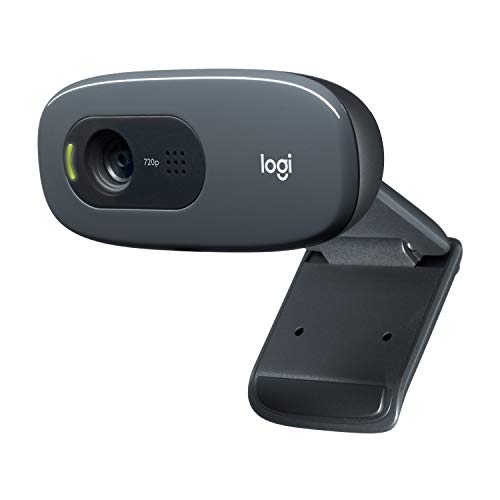
Not everyone needs a 4K webcam. If you're a student, a casual video caller, or someone who just needs a working camera that looks decent, the Logitech C270 gets the job done for the price of a fast-food meal. It shoots 720p at 30fps with a 55-degree field of view — enough to frame your head and shoulders without showing off your messy room behind you.
The built-in noise-reducing microphone picks up your voice clearly from up to 1.5 meters (about 5 feet) away. It won't win any audio quality awards, but it's more than adequate for calls with family, team standup meetings, or quick check-ins. Auto light correction helps brighten your image in typical indoor lighting, though it struggles more than pricier models when conditions get really dim. It's also now compatible with Nintendo Switch 2's GameChat mode.
The C270's biggest limitation is obvious: 720p looks soft on large monitors, and you won't be able to crop or zoom without noticeable quality loss. There's no autofocus either — it uses a fixed-focus lens, which works fine at desk distance but can't adapt if you move around. For the price, though, these are fair trade-offs. This webcam has sold millions of units for a reason.
Pros:
Cons:
If your workday revolves around Microsoft Teams, this webcam was built specifically for you. The Microsoft Modern Webcam is certified for Teams and Zoom, which means it's been tested and optimized to work seamlessly with those platforms — no driver quirks, no compatibility headaches. The HDR-enabled 1080p sensor produces vibrant, true-to-life colors that look polished on screen.
One standout feature is the integrated privacy shutter. Slide it closed, and a usage indicator light confirms the camera is physically blocked. It's not just software-based — the lens is actually covered. For anyone working from home who shares their space with family, that physical assurance matters. The auto white balance and exposure compensation work together to keep your image looking natural across different lighting setups throughout the day.
The noise-cancelling microphone is tuned for voice clarity in typical office environments. It filters out keyboard clicks, fan noise, and background chatter reasonably well. The mounting mechanism is versatile — it clips onto monitors, laptop screens, and desktop tripods with equal stability. The design is clean and minimal, matching the aesthetic of Microsoft Surface devices and modern monitors. It won't turn heads, but it won't look out of place either.
Pros:
Cons:
Streamers and gamers, this one's for you. The Razer Kiyo Pro delivers uncompressed 1080p at 60 frames per second — and that "uncompressed" part matters. Most webcams compress the video signal before sending it to your PC, which introduces artifacts and softness. The Kiyo Pro sends the raw feed, and the difference in clarity is visible, especially when you're moving or when there's fast action on screen behind you.
The adaptive light sensor is the real showstopper. Razer claims it outperforms even some 4K webcams in low light, and in our experience, that's not an exaggeration. If you stream from a dimly lit gaming setup or record content in a room without professional lighting, the Kiyo Pro produces a dramatically cleaner, less grainy image than competitors. It handles everything from pitch-dark rooms to bright daylight without washing out.
You get three field-of-view options: 103°, 90°, and 80°. The widest setting captures your entire setup, which is great for IRL streams or desk tours. The narrowest frames just you, keeping the background minimal. The camera works natively with OBS, XSplit, Streamlabs, and all major conferencing apps. If you're looking for webcam software to pair with it, there are plenty of free options that unlock even more control. The HDR mode adds richness to colors but does reduce your frame rate to 30fps — a trade-off worth knowing about.
Pros:
Cons:
The Elgato Facecam 4K is the closest thing to a DSLR camera experience in webcam form. It shoots 4K at 60fps — the only webcam on this list to hit that combination — using a Sony STARVIS 2 CMOS sensor and Elgato's proprietary Prime Lens technology. The image quality is genuinely impressive: sharp details, natural skin tones, and vibrant colors without oversaturation. If your content depends on how you look on camera, this is the webcam to get.
What sets the Facecam 4K apart from other premium webcams is the level of control. Elgato's free Camera Hub software gives you DSLR-style adjustments: ISO, shutter speed, white balance, saturation, and more. You can save profiles and switch between them instantly — one for streaming, one for video calls, one for recording tutorials. It also supports 49mm lens filters, so you can add physical ND filters, diffusion filters, or creative color filters just like you would on a real camera.
The camera connects via USB-C (cable included) and delivers uncompressed video at all resolutions. There's no built-in microphone — Elgato assumes content creators already have a dedicated mic, and honestly, they're right. Dropping the mic lets them focus the engineering budget entirely on image quality. The mounting system is solid, with a built-in monitor clip and standard 1/4-inch tripod thread.
Pros:
Cons:
The OBSBOT Tiny 2 Lite does something no other webcam on this list can: it physically moves to follow you. The AI-powered pan-tilt-zoom (PTZ) mechanism tracks your face and body in real time, keeping you centered in the frame as you move around your workspace. Stand up, walk to a whiteboard, sit back down — the camera follows smoothly without any manual adjustment. It's like having a cameraman on your desk.
Under the hood, you get a 1/2-inch CMOS sensor shooting 4K at up to 60fps with HDR support. The image quality competes with dedicated 4K webcams from Logitech and Elgato, which is impressive for a camera that also has motorized tracking hardware packed inside. The dual built-in microphones capture clear audio, and gesture control lets you trigger actions (like zooming in or starting/stopping tracking) with hand signals — no keyboard or mouse needed.
Multiple tracking modes let you customize how the camera follows you. Upper body tracking keeps a natural framing for meetings, while hand tracking is useful for teachers and presenters demonstrating physical objects. You can even set custom tracking and non-tracking zones, telling the camera exactly where to look and where to ignore. The OBSBOT app offers additional control over image settings and tracking behavior. For anyone who moves during calls or presentations, this is a game-changer.
Pros:
Cons:
Resolution determines how sharp your image looks, and frame rate determines how smooth your motion appears. Here's a quick breakdown:
Keep in mind that 4K video requires a USB 3.0 port and puts more load on your CPU. If you have an older Windows PC, 1080p might actually look better because your system can handle it without dropping frames.
This is where cheap webcams fall apart. If your workspace doesn't have ideal lighting — and most home offices don't — you need a camera with good low-light capabilities. Look for features labeled as "auto light correction," "RightLight," or "adaptive light sensor." These use software and hardware together to brighten your image and reduce grain (the fuzzy dots you see in dim video).
As a rule, larger image sensors capture more light. The OBSBOT Tiny 2 Lite's 1/2-inch sensor and the Razer Kiyo Pro's adaptive sensor both excel in dim conditions. Smaller sensors, like those in the C270, struggle more. If you can't control your room's lighting, prioritize this spec over raw resolution.
Every webcam on this list except the Elgato Facecam 4K includes a built-in microphone. For casual calls and meetings, these built-in mics are usually good enough. But if you're streaming, recording podcasts, or presenting to clients, a separate USB microphone will sound dramatically better. Here's what to look for in a webcam mic:
Most webcams use a clip-style mount that grabs the top of your monitor or laptop screen. Check that the clip works with your monitor's thickness — ultra-thin monitors can be tricky. A standard 1/4-inch tripod thread on the bottom gives you more mounting flexibility, including desk tripods, ring light mounts, and boom arms.
Privacy features have become increasingly important. A physical privacy shutter — like the one on the Microsoft Modern Webcam — gives you guaranteed camera blocking. No software glitch or hacking attempt can see through a physical cover. If your webcam doesn't have one, you can always use a stick-on lens cover for a couple of dollars, but having it built in is more elegant and reliable. For tips on setting everything up, our guide on how to set up a live webcam covers the basics.
No. Most video conferencing platforms cap their video streams at 1080p or even 720p, regardless of your camera's resolution. A 4K webcam gives you a sharper source image that looks better after compression, and it lets you crop or zoom digitally without losing quality. But for straightforward calls, a good 1080p webcam like the Logitech C920x delivers everything you need.
Graininess (also called "noise") is almost always a lighting issue, not a resolution issue. Your webcam's sensor amplifies the signal in dim conditions, which creates visible grain. The fix is better lighting: position a desk lamp or ring light in front of you, facing your face. Even a cheap lamp makes a bigger difference than upgrading your camera.
Yes. Every webcam on this list works with both Windows 10 and Windows 11 using standard USB Video Class (UVC) drivers that are built into Windows. You don't need to install anything extra for basic functionality. Optional manufacturer software (like Logitech Logi Tune or Elgato Camera Hub) adds features but isn't required.
For most work calls, yes. The microphones on the Logitech C920x, Logitech Brio, and Microsoft Modern Webcam all produce clear enough audio for daily meetings. If you're doing a lot of presentations, client-facing calls, or recording content, a dedicated USB microphone in the $50–$100 range will be a noticeable upgrade in voice quality and background noise rejection.
USB 2.0 has enough bandwidth for 1080p/30fps webcams. USB 3.0 is required for 4K webcams (like the Logitech Brio and Elgato Facecam 4K) and for uncompressed 1080p/60fps feeds. If you plug a 4K webcam into a USB 2.0 port, it will usually still work but may drop to a lower resolution or frame rate. Check your laptop or desktop's ports — USB 3.0 ports are often marked with a blue insert or an "SS" (SuperSpeed) label.
No. Windows has built-in camera support through UVC drivers, so any modern webcam works out of the box with Zoom, Teams, Google Meet, and the Windows Camera app. Manufacturer software is optional but can unlock useful features like manual exposure control, zoom presets, and background replacement. Visit our buying guide for more webcam recommendations and setup tips.


About James W.
A contributing writer at DigiLabsPro covering photography gear reviews, buying guides, and camera comparisons. Specializes in evaluating cameras, lenses, and accessories for photographers at the intermediate and enthusiast level looking to upgrade their kit.
You can get FREE Gifts. Or latest Free phones here.
Disable Ad block to reveal all the info. Once done, hit a button below
