The Fujitsu ScanSnap iX1600 is our top pick for the best scanner for Chromebook in 2026 — it delivers fast wireless scanning with a dead-simple setup that works flawlessly with Chrome OS. Whether you're digitizing years of paper clutter, scanning receipts for tax season, or going fully paperless in your home office, having a Chromebook-compatible scanner saves you hours of frustration.
Here's the thing about Chromebooks: not every scanner plays nice with Chrome OS. Many scanners rely on Windows or Mac drivers that simply don't exist for Chromebooks. You need a scanner that works over Wi-Fi or USB with web-based apps, Google Drive integration, or built-in cloud services. We tested seven of the best options available in 2026, from compact portable models to full-featured desktop units with large document feeders. Every scanner on this list works with Chromebooks right out of the box.

If you also need a scanner that handles two-sided documents in a single pass, check out our guide to the best duplex scanners for more options. Below, you'll find detailed reviews, a comparison table, a buying guide, and answers to the most common questions about scanning with a Chromebook. Let's find your perfect match.
Contents





The Fujitsu ScanSnap iX1600 earned the top spot because it combines speed, reliability, and effortless Chromebook compatibility into one package. With a 4.3-inch touchscreen, you can set up personalized scanning profiles — one tap sends documents straight to Google Drive, another saves to a local folder on your Chromebook. The 600 dpi optical resolution (the number of tiny dots the scanner captures per inch) produces crisp, detailed scans of everything from receipts to full-color photographs.
What makes the iX1600 stand out for Chromebook users is its Wi-Fi Direct scanning capability. You don't need a complicated driver installation. Connect to the same network as your Chromebook, open ScanSnap Cloud in your browser, and you're scanning within minutes. The 50-sheet automatic document feeder (ADF) handles large batches without babysitting, and duplex scanning captures both sides of a page in a single pass at up to 40 pages per minute. For a home office or small team sharing one scanner, this is the gold standard.
Build quality is excellent. The white plastic housing feels sturdy without being bulky, and the feed mechanism handles mixed paper sizes without jamming. The touchscreen interface is responsive and intuitive — even if you've never used a document scanner before, you'll figure it out in minutes. It's also great for team environments where multiple people scan to different destinations.
Pros:
Cons:
If the iX1600 is too big for your workspace, the ScanSnap iX1300 delivers most of the same scanning power in a dramatically smaller package. This thing has an innovative U-turn scan path that lets you scan with the cover closed — the paper feeds in from the front and comes right back out the front. That means it can sit on a narrow shelf, a crowded desk, or even tucked behind your monitor. It's a clever design that solves a real problem for small spaces.
Performance is impressive for its size. You get 30 pages per minute duplex scanning, automatic de-skew (straightens crooked pages), color optimization, and blank page removal. The exclusive Quick Menu feature pops up on your Chromebook screen after each scan, letting you drag and drop the file to your preferred app or cloud service. No additional software installation required — it's all browser-based, which is exactly what Chromebook users need.
The iX1300 handles more than just paper. It scans plastic cards (like insurance or membership cards), thick cardstock, receipts, and photos up to 8.5 x 34 inches. The manual feed slot on top accepts items one at a time for thicker media, while the ADF handles standard document batches of up to 20 sheets. For Chromebook users who want a capable scanner that won't dominate their desk, this is the sweet spot between portability and performance.
Pros:
Cons:
The ScanSnap iX2500 is the newest model in Fujitsu's lineup for 2026, and it's built for people who scan a lot. We're talking about a 100-page automatic document feeder, 45 pages per minute scanning speed, and a large 5-inch touchscreen that makes navigating profiles and destinations feel effortless. If you regularly process stacks of paperwork — invoices, contracts, medical records — this is the scanner that won't slow you down.
The iX2500 is the official replacement for the discontinued iX1600, and it improves on its predecessor in every measurable way. Wi-Fi 6 connectivity (the latest wireless standard, faster and more reliable than previous versions) means your scans transfer to your Chromebook or cloud storage noticeably faster, especially for high-resolution image files. You also get USB-C for a direct wired connection when you need maximum speed or your Wi-Fi is acting up.
Cloud integration is where this scanner really shines for Chromebook users. You can scan directly to Google Drive, OneDrive, Dropbox, and other cloud services without touching your Chromebook at all — just select the profile on the touchscreen and hit scan. The automatic optimizations handle image cleanup, page orientation, and file naming. For anyone who's serious about going paperless in 2026, the iX2500 is the most future-proof choice. If you're interested in digitizing old photos too, our guide on how to scan pictures covers the best techniques.
Pros:
Cons:
The Brother ADS-1700W delivers solid scanning performance at a lower price point than the ScanSnap models. It features a 2.8-inch color touchscreen, 25 pages per minute scanning, and a 20-page ADF. The standout feature for Chromebook users is the Auto Start Scan — just drop your paper into the feeder and scanning begins automatically based on your preset profile. No buttons to press, no menus to navigate.
Brother's scanner supports an impressive range of destinations. You can scan to cloud services, email, network folders, FTP servers, USB flash drives, and mobile devices. The touchscreen makes it easy to pick your destination before scanning. Documents up to 34 inches long are supported, which covers legal-size documents and extra-long receipts. Duplex scanning captures both sides in a single pass, and the built-in image processing cleans up backgrounds and removes blank pages automatically.
Where the ADS-1700W falls slightly behind the ScanSnap models is in scan quality at higher speeds and the overall software experience. The ScanSnap ecosystem is more polished, especially for cloud workflows. But if you're watching your budget and need a reliable desktop scanner that works well with your Chromebook, the Brother ADS-1700W is a strong contender that gets the job done without any fuss. It's worth noting that this scanner also excels at scanning receipts for accounting software if that's part of your workflow.
Pros:
Cons:
The Epson WorkForce ES-300W is the ideal choice if you need to scan on the go. It's a fully portable scanner with a rechargeable battery, wireless connectivity, and a 20-sheet auto document feeder — all in a compact, travel-friendly design. You can power it three different ways: AC adapter at your desk, rechargeable battery on the road, or USB power from your Chromebook. That flexibility is hard to beat for mobile professionals.
Scan speeds are impressive at 25 pages per minute, with Epson's Single-Step Technology capturing both sides of a double-sided document in one pass. That puts it at 50 images per minute for duplex scanning, which is fast for a portable unit. You can scan wirelessly to your Chromebook, smartphone, tablet, or directly to cloud storage accounts. The wireless setup is straightforward and works reliably with Chrome OS.
Build quality is good for a portable device. It feels solid enough to toss in a laptop bag without worrying about damage, yet light enough that it doesn't add noticeable weight. The included software handles OCR (optical character recognition — converting scanned text into editable text), image cleanup, and file organization. If your work takes you to different locations and you need scanning capability everywhere you go, the ES-300W is the clear winner in the portable category.
Pros:
Cons:
The Epson WorkForce ES-50 is the lightest and fastest single-sheet scanner in its class. If you only need to scan a few pages at a time and portability is your top priority, this tiny scanner weighs barely over half a pound and scans a full color page in just 5.5 seconds. It's powered entirely through USB, so you plug it into your Chromebook and start scanning — no batteries, no power adapter, no Wi-Fi setup.
Don't let the small size fool you. The ES-50 handles documents up to 8.5 x 72 inches, which means it can scan extra-long documents like architectural drawings or continuous-feed receipts. It also handles ID cards and standard receipts without any trouble. The included TWAIN driver (a standard protocol that lets scanning software communicate with the hardware) ensures compatibility across platforms, and it works with both Windows and Mac in addition to Chromebook through USB.
The trade-off is obvious: no automatic document feeder. You feed pages one at a time. For scanning a stack of 50 documents, you'll want one of the models above. But for scanning a few receipts after a business lunch, digitizing a contract on-site, or keeping a scanner in your laptop bag for occasional use, the ES-50 is unbeatable. It costs a fraction of the desktop models and takes up almost no space.
Pros:
Cons:
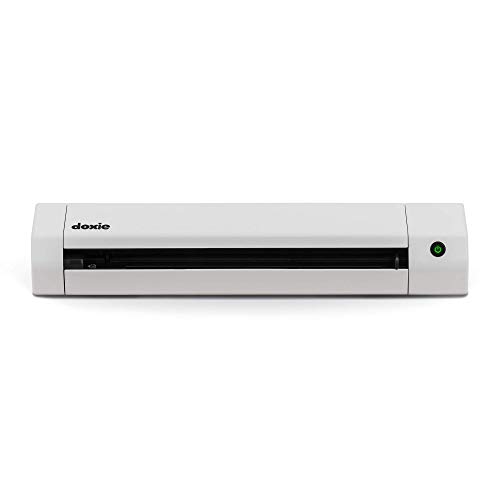
The Doxie Go SE takes a unique approach to portable scanning. It has a rechargeable battery and built-in memory, so you can scan up to 400 pages without being connected to any device at all. Grab the Doxie, scan your stack of papers wherever you are, then sync everything to your Chromebook later over Wi-Fi or USB. It's about the size of a rolled-up magazine, making it one of the most portable options available.
Scan quality is solid at up to 600 dpi, and full-color pages take about 8 seconds each. The internal storage holds up to 8,000 pages before you need to sync and clear, which is more than enough for most people. The Doxie software is clean and simple — it organizes your scans, lets you create multi-page PDFs, and sends files to cloud services, email, or desktop apps. The experience feels thoughtfully designed for people who just want scanning to work without learning complicated software.
The Doxie Go SE is ideal for someone who wants to tackle a paperless project — scanning boxes of old documents, receipts, and records — without being tethered to a desk. Take it to the filing cabinet, scan everything, then walk away. The downside is that it's a single-sheet feed scanner without an ADF, so you're feeding pages one at a time. For organized batch scanning at a desk, the models above are better choices. But for flexible, scan-anywhere convenience, the Doxie delivers a delightful experience.
Pros:
Cons:
This is the most important factor and the one most people overlook. Many scanners are designed primarily for Windows and Mac, with Chrome OS support being an afterthought or missing entirely. Look for scanners that offer Wi-Fi scanning with cloud service integration or USB scanning that works through Chrome's built-in scanning utility. ScanSnap Cloud, for example, works entirely in the browser, making it a natural fit for Chromebooks. According to Wikipedia's Chrome OS page, the operating system is designed around web applications, so scanners with web-based interfaces will always provide the smoothest experience.
Wi-Fi scanners offer the most flexibility with Chromebooks. You can place the scanner anywhere in your home or office and scan wirelessly. However, USB scanners tend to be simpler to set up and don't depend on your network being reliable. Some scanners, like the ScanSnap iX2500, offer both options. If you're choosing between the two, Wi-Fi is generally better for desktop scanners that stay in one place, while USB is preferable for portable scanners you'll plug directly into your Chromebook.
How much do you scan? If you're digitizing a few pages a week, even a single-sheet portable scanner will do the job. But if you're processing stacks of mail, invoices, or paperwork regularly, you want a scanner with an ADF and speeds of at least 25 pages per minute. The ADF capacity matters too — a 20-sheet feeder means reloading every 20 pages, while a 100-sheet feeder lets you load a big stack and walk away. Consider your typical scanning volume honestly before deciding how much speed and capacity you actually need.
There's a clear trade-off between portability and scanning capability. Desktop scanners like the ScanSnap iX1600 or iX2500 offer the fastest speeds, largest document feeders, and best image quality — but they're meant to stay on your desk. Portable scanners like the Epson ES-300W or Doxie Go SE travel easily but scan slower and handle fewer pages at once. Think about where you'll do most of your scanning. If it's always at the same desk, go desktop. If you move between locations or travel frequently, portability is worth the performance trade-off. For more peripheral recommendations for your setup, browse our buying guide section.
No, not every scanner works with a Chromebook. Chrome OS doesn't support traditional scanner drivers the way Windows and Mac do. You need a scanner that either supports Wi-Fi scanning with cloud services, works with Chrome's built-in scan utility over USB, or has a web-based interface. All seven scanners reviewed in this guide are confirmed to work with Chromebooks in 2026. Before buying any scanner not on this list, check the manufacturer's website for explicit Chrome OS compatibility.
There are two main methods. For Wi-Fi scanners, connect the scanner to the same network as your Chromebook and use the scanner's web interface or cloud service (like ScanSnap Cloud) through Chrome browser. For USB scanners, plug the scanner directly into your Chromebook's USB port — Chrome OS has a built-in scanning utility that detects compatible USB scanners automatically. Wi-Fi is generally easier for desktop scanners, while USB works best for portable models.
For standard text documents, 300 dpi is more than enough and produces small file sizes that are easy to store and share. For photos, you'll want 600 dpi to capture fine details and color gradients. If you're scanning documents that you need to run through OCR software, 300 dpi is the sweet spot — higher resolutions don't significantly improve text recognition but do create larger files. All scanners on this list support at least 600 dpi.
Duplex scanning (scanning both sides of a page in a single pass) saves significant time if you regularly handle double-sided documents. Without it, you'd need to scan one side, flip the page, and scan again. Most desktop scanners on this list offer automatic duplex scanning. If you mostly scan single-sided documents like receipts or photos, duplex capability is a nice bonus but not essential.
Yes, most of the Wi-Fi scanners reviewed here support scanning directly to Google Drive. The ScanSnap models (iX1600, iX1300, and iX2500) do this through ScanSnap Cloud, which you configure once with your Google account. The Brother ADS-1700W and Epson ES-300W also support cloud scanning destinations. The USB-only models (Epson ES-50 and Doxie Go SE) require you to save scans locally first, then upload to Google Drive manually or through a syncing app.
Battery life varies by model and usage. The Epson WorkForce ES-300W gets roughly 300 scans per charge under normal wireless use, though heavy Wi-Fi scanning drains the battery faster. The Doxie Go SE is rated for up to 400 pages per charge. In real-world use, expect about 80% of the manufacturer's claimed battery life. If you're planning long scanning sessions away from power, the Doxie Go SE's higher page-per-charge rating gives it an edge. Both models recharge via USB.


About James W.
A contributing writer at DigiLabsPro covering photography gear reviews, buying guides, and camera comparisons. Specializes in evaluating cameras, lenses, and accessories for photographers at the intermediate and enthusiast level looking to upgrade their kit.
You can get FREE Gifts. Or latest Free phones here.
Disable Ad block to reveal all the info. Once done, hit a button below
